# A speed test for your terminal.
# velo measures latency, download, upload, and bufferbloat against the nearest speedtest.net server. It shows each phase live, in the colors of your Omarchy theme.
curl -fsSL https://raw.githubusercontent.com/bjarneo/velo/main/install.sh | sh
velo: download velo_0.1.1_linux_amd64.tar.gz
velo: installed 0.1.1 to /home/you/.local/bin/velo
velo: run velo to start a test
# Add velo to the Omarchy launcher. Then press Super + Space and type velo.
omarchy-tui-install velo velo tile https://raw.githubusercontent.com/bjarneo/velo/main/assets/icon.png
# Run a test. A test takes about 20 seconds.
velo --private
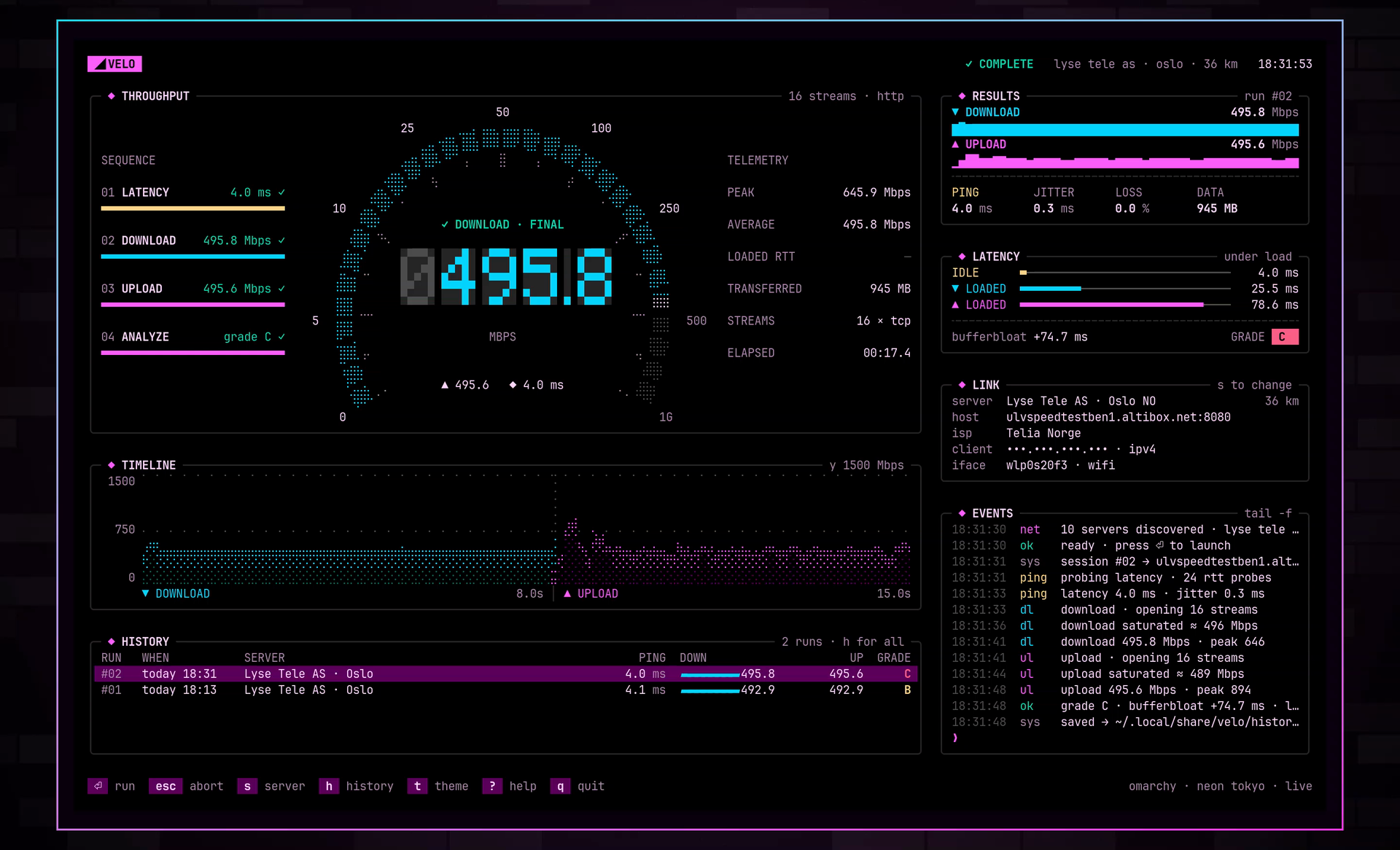
velo: session closed · last run ↓ 495.8 ↑ 495.6 Mbps · 4.0 ms · C
# --private masks the IP address. Use it when you share a screenshot or a recording.
# One key per action. Press the keys on this page: it answers like velo.
# Six flags. velo starts a test without any.
velo --help
usage: velo [flags]

  -demo
    	simulate the network instead of testing it
  -no-autostart
    	wait for ⏎ instead of starting a test
  -private
    	mask the client IP address, for screenshots and recordings
  -server string
    	use the speedtest.net server with this id, as the server list shows it
  -theme string
    	start with this theme, for example "nord"
  -version
    	print the version and exit

themes: omarchy, tokyo-night, catppuccin, gruvbox, nord, everforest, kanagawa, rosé-pine, matte-black
# Not on Linux amd64 or arm64? Install with Go 1.26 or later.
go install github.com/bjarneo/velo@latest
# How velo measures. Each value has a documented method.
less docs/measurement.md
-
01LATENCY4.0 ms ✓
24 HTTP probes on one warm connection. Ping is the mean time. Jitter is the mean change between 2 probes.
-
02DOWNLOAD495.8 Mbps ✓
16 streams for 8 seconds. velo counts the bytes that it reads and takes a sample every 50 ms.
-
03UPLOAD495.6 Mbps ✓
16 streams for 7 seconds. On Linux, velo counts only the bytes that the server acknowledged.
-
04ANALYZEgrade C ✓
A latency probe every 250 ms under load. Bufferbloat is the loaded latency minus the idle latency.
| bufferbloat | grade |
|---|---|
| less than 5 ms | A+ |
| less than 30 ms | A |
| less than 60 ms | B |
| less than 200 ms | C |
| 200 ms or more | D |
This run: +74.7 ms on Wi-Fi.
# Read the full method, the endpoints, and the limits in docs/measurement.md.
# velo saves each run as one JSON line. Scripts and agents can read it.
tail -n 1 ~/.local/share/velo/history.jsonl | jq
{
  "id": 2,
  "time": "2026-10-27T18:31:48+01:00",
  "server": "Lyse Tele AS · Oslo",
  "host": "ulvspeedtestben1.altibox.net:8080",
  "ping_ms": 3.96,
  "jitter_ms": 0.32,
  "down_mbps": 495.84,
  "up_mbps": 495.56,
  "bloat_ms": 74.69,
  "loss_pct": 0,
  "grade": "C",
  "data_mb": 945.34
}
# Coding agents: AGENTS.md tells you how to install velo and how to read this file.
# velo 0.1.1 runs on Linux amd64 and arm64. It is written in Go with Bubble Tea.