quire
A plain editor for folders of Markdown files.
Quire keeps each note as a plain .md file in a folder you choose. Write in source with live highlighting, read in preview, and link notes with [[wiki links]].

See it work
This recording shows 38 seconds of the desktop app. You see a new note with a link and a tag, bold text and a list from the toolbar, and an image in the preview. Then come the quick switcher, focus mode, a dark theme, the sync settings and a locked note.
Plain files
Your notes are Markdown files in a folder on your disk. Quire opens the folder and edits the files in place.
- Any app can open them. A text editor,
greporgitsees the same files that Quire sees. - No database, no lock-in. There is no import step and no export step. If you stop using Quire, your notes stay where they are.
- Use the folder you have. Open any folder of
.mdfiles, or create a new folder anywhere on your disk.
Field Notes/
├── Drafts/
│   └── On slow software.md
├── Journal/
│   ├── 2026-11-11.md
│   └── 2026-11-12.md
├── Projects/
│   └── Garden plan.md
├── Ideas.md
├── Reading list.md
└── Welcome.mdSource and preview
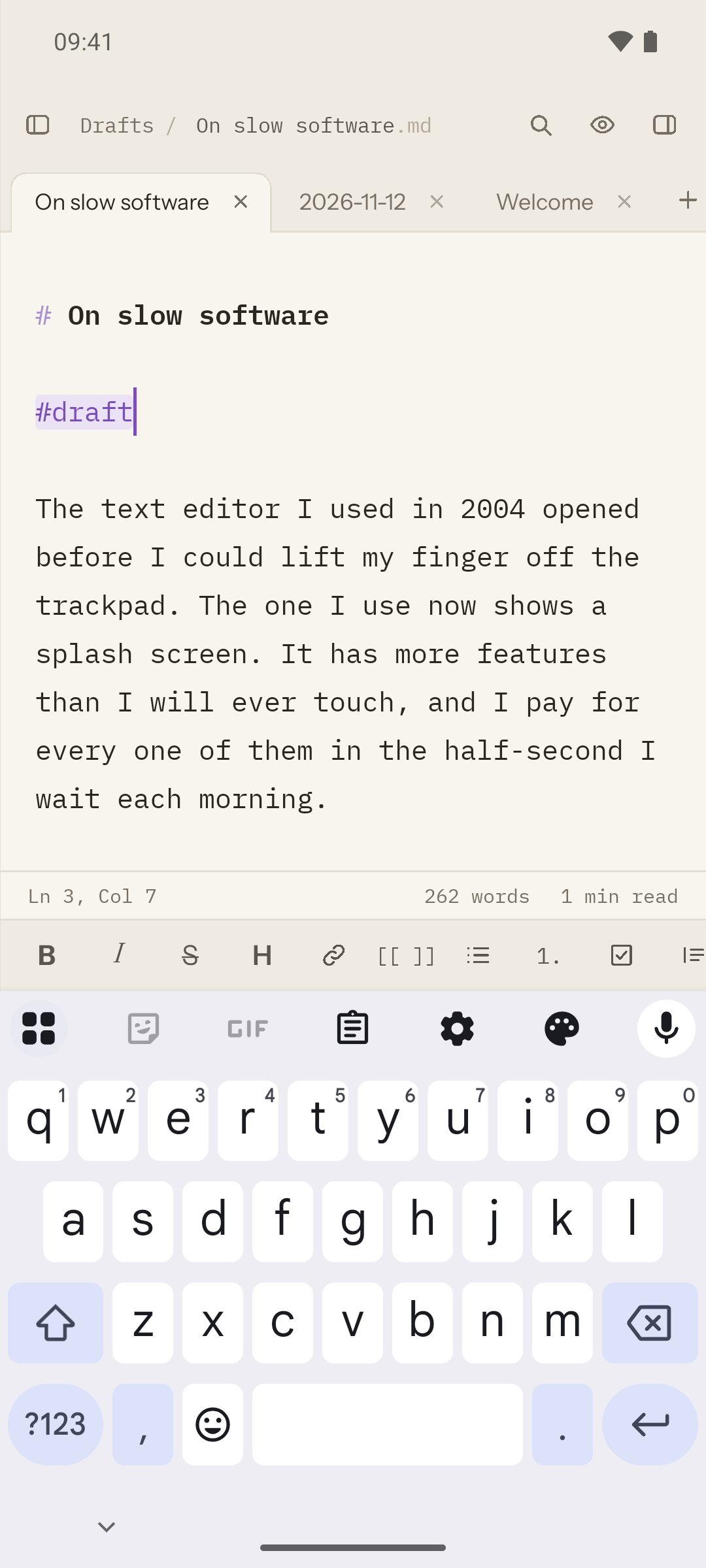
Source mode shows your Markdown with live highlighting in a monospaced font. The syntax stays in view, so the screen always matches the file.
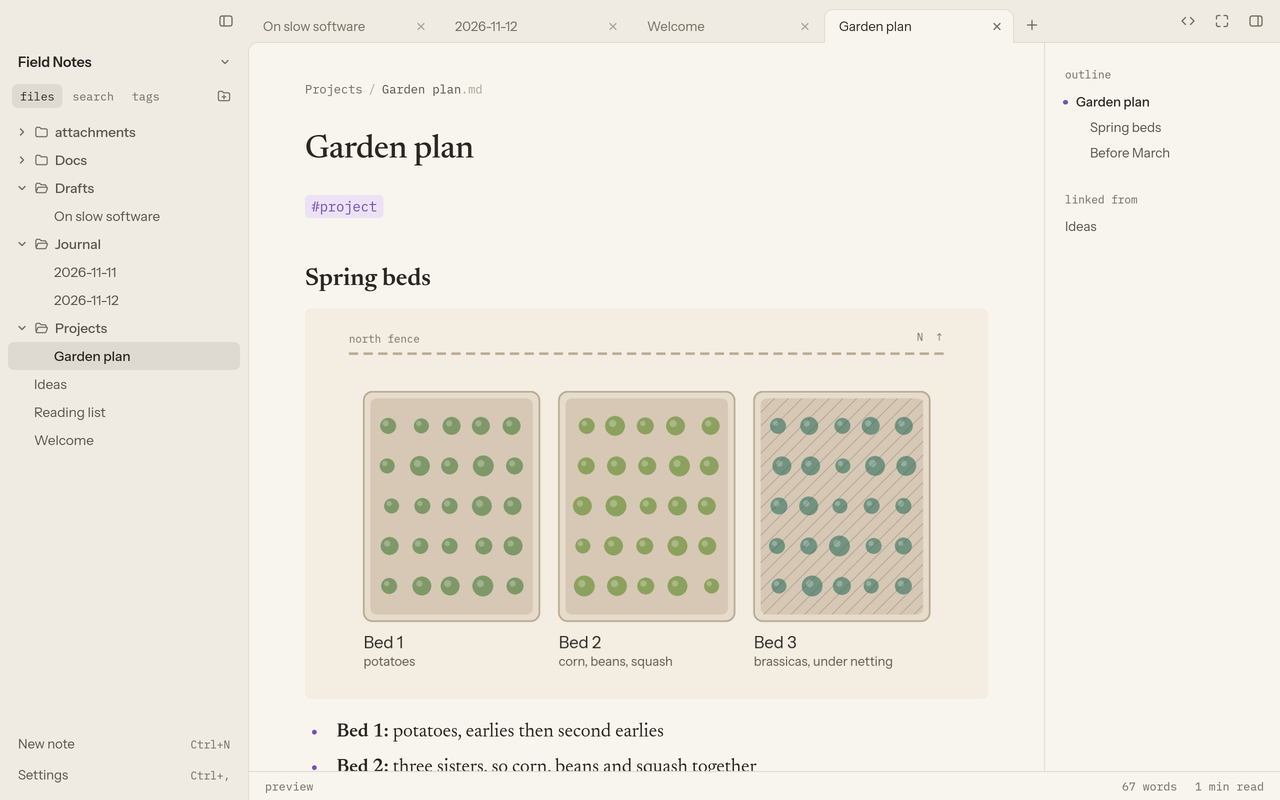
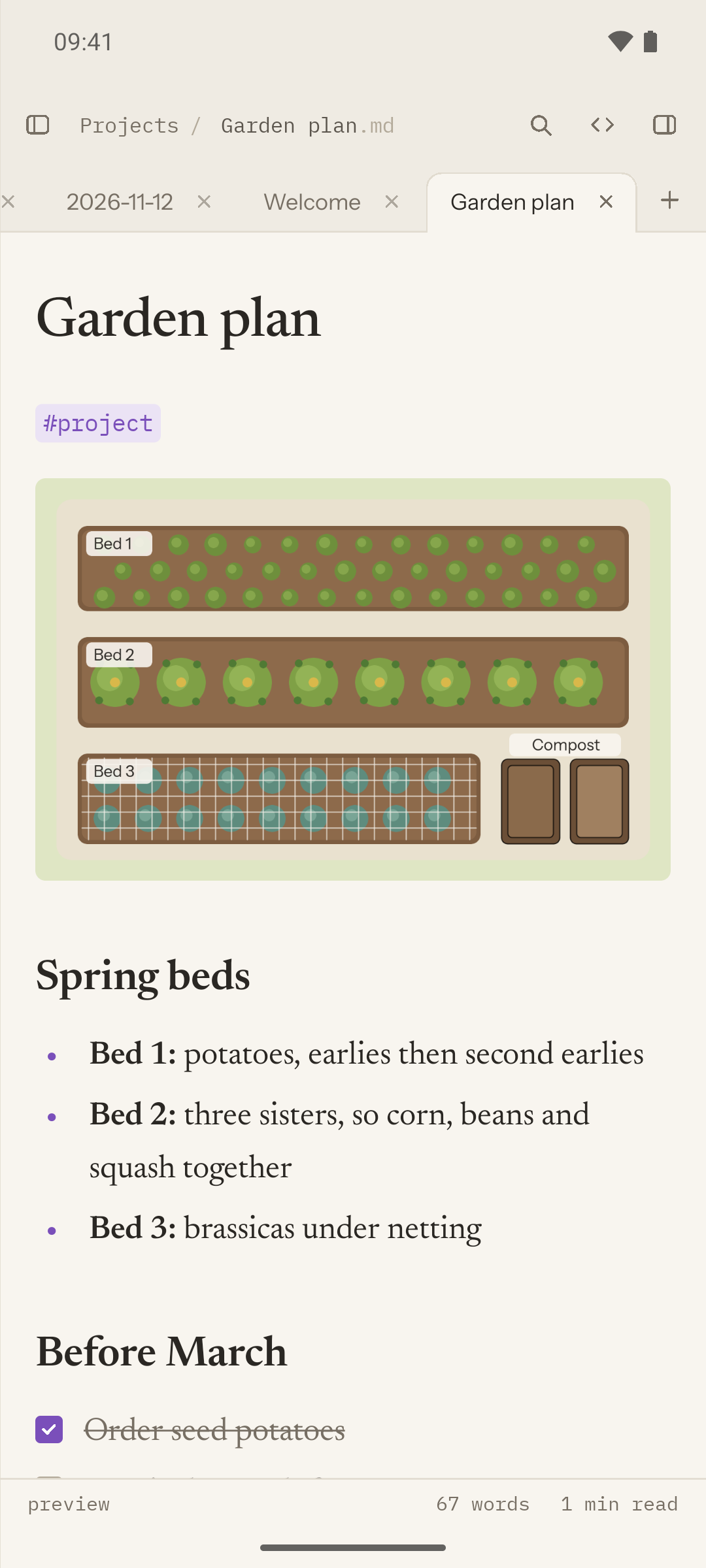
Preview renders the note like a page, in a serif or a sans typeface. Press Ctrl+E to switch between the two.
A toolbar above the note adds bold, italics, headings, links, lists, tasks, quotes, code and images. Ctrl+B, Ctrl+I and Ctrl+K work too. The lock button at the end of the toolbar locks a note with its own password.
Images show in the preview. Drag an image onto a note, paste one, or pick one with the image button. Quire copies it into the attachments folder and links it.
- Task lists have checkboxes that you can tick in preview.
- Lists continue when you press Enter.
- Ctrl+B and Ctrl+I make text bold and italic.

Links, tags and backlinks
Put a note name in double square brackets to link to it, as in [[Reading list]]. Ctrl-click a link to follow it. If the note does not exist yet, Quire creates it.
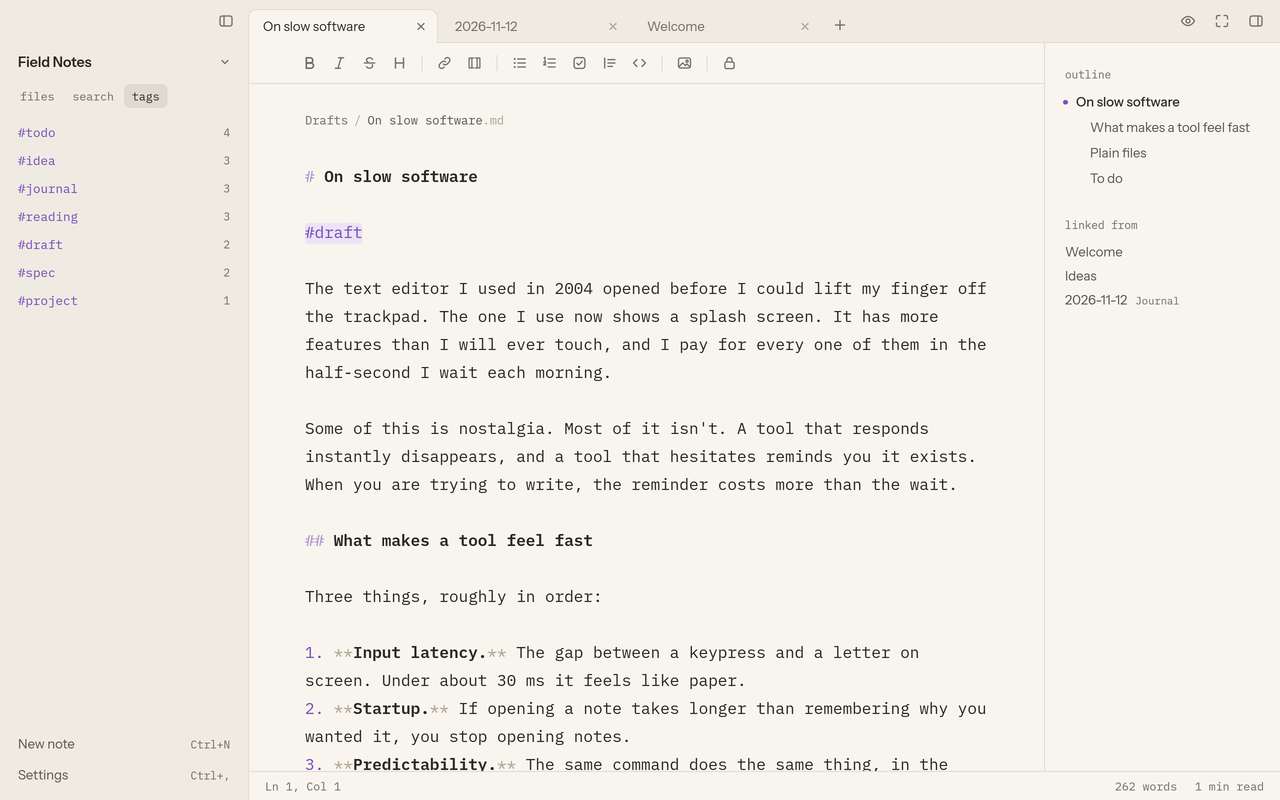
Add #tags anywhere in a note. The tags panel lists each tag with a count. Full-text search looks through every note in the folder.
The outline shows the headings of the open note. Under it, linked from lists the notes that link to this one.
When you rename a note, Quire rewrites the links to it in your other notes.
Quick switcher and command palette
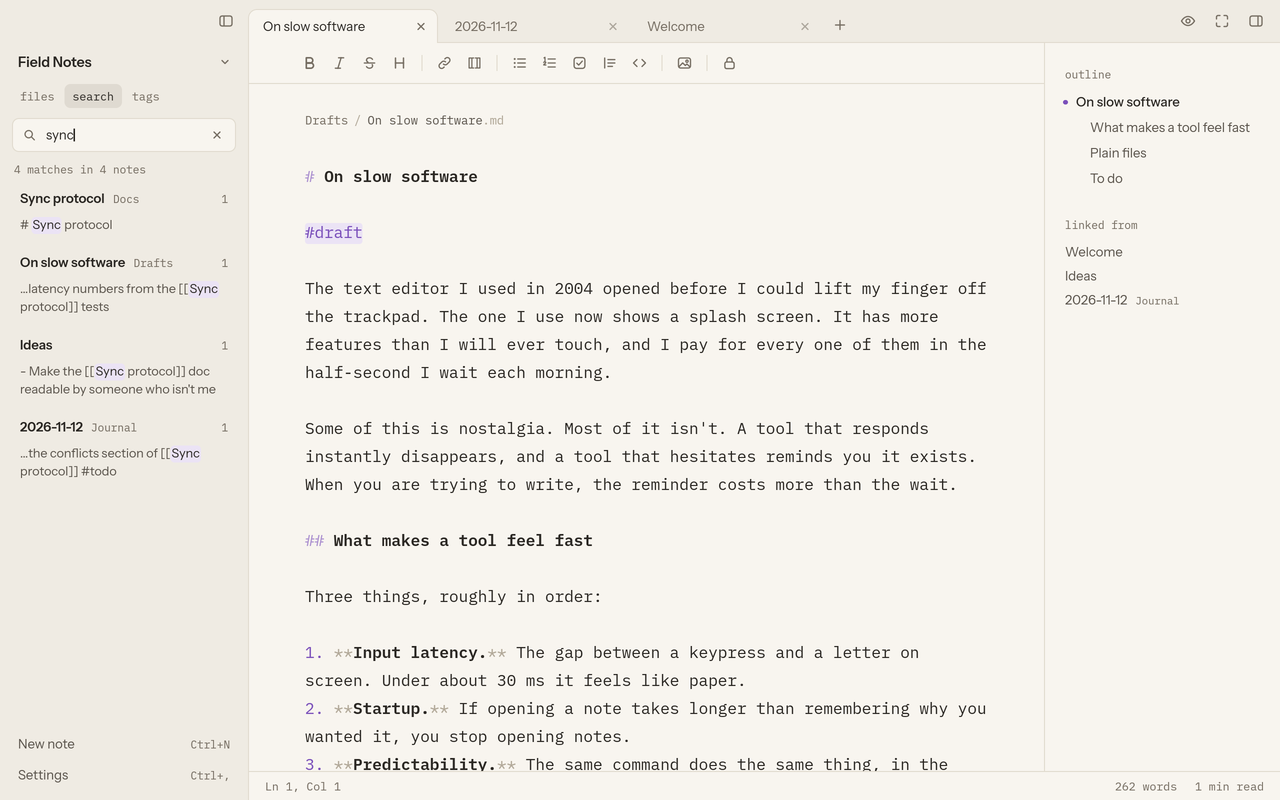
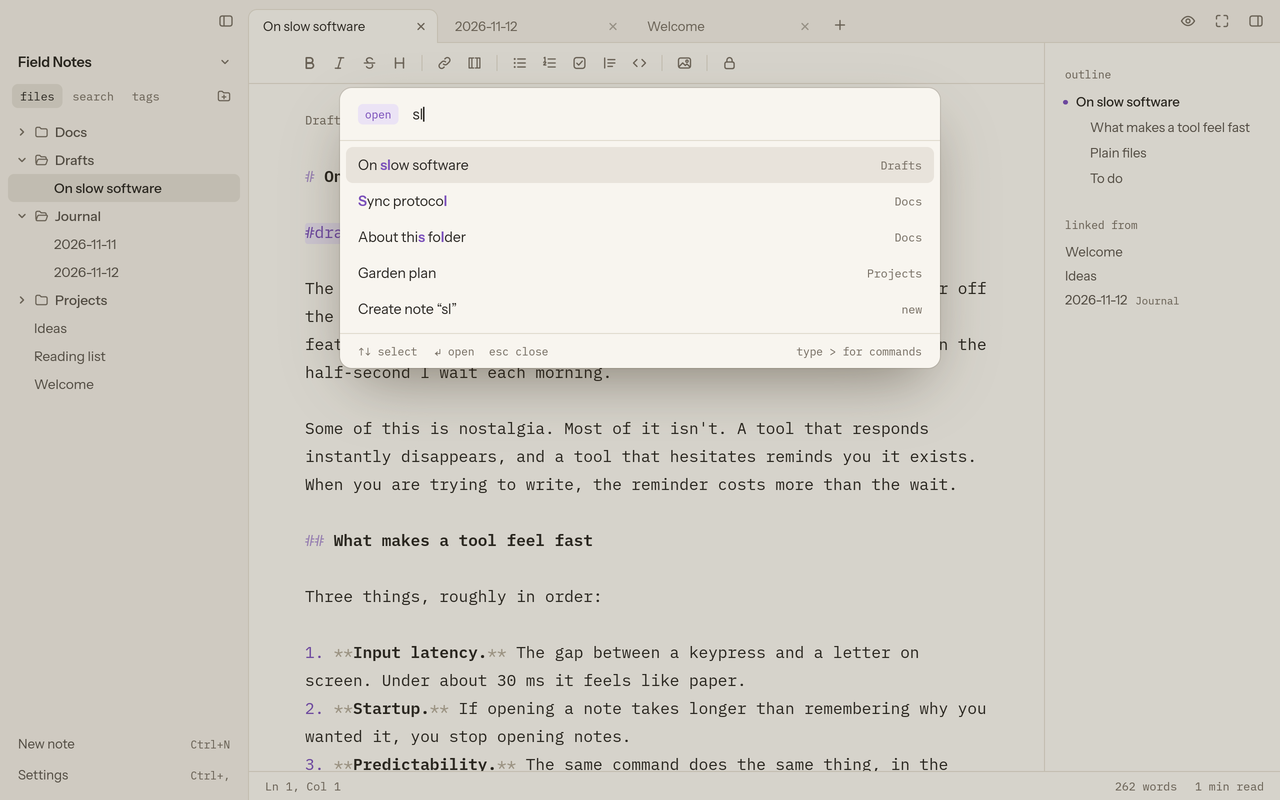
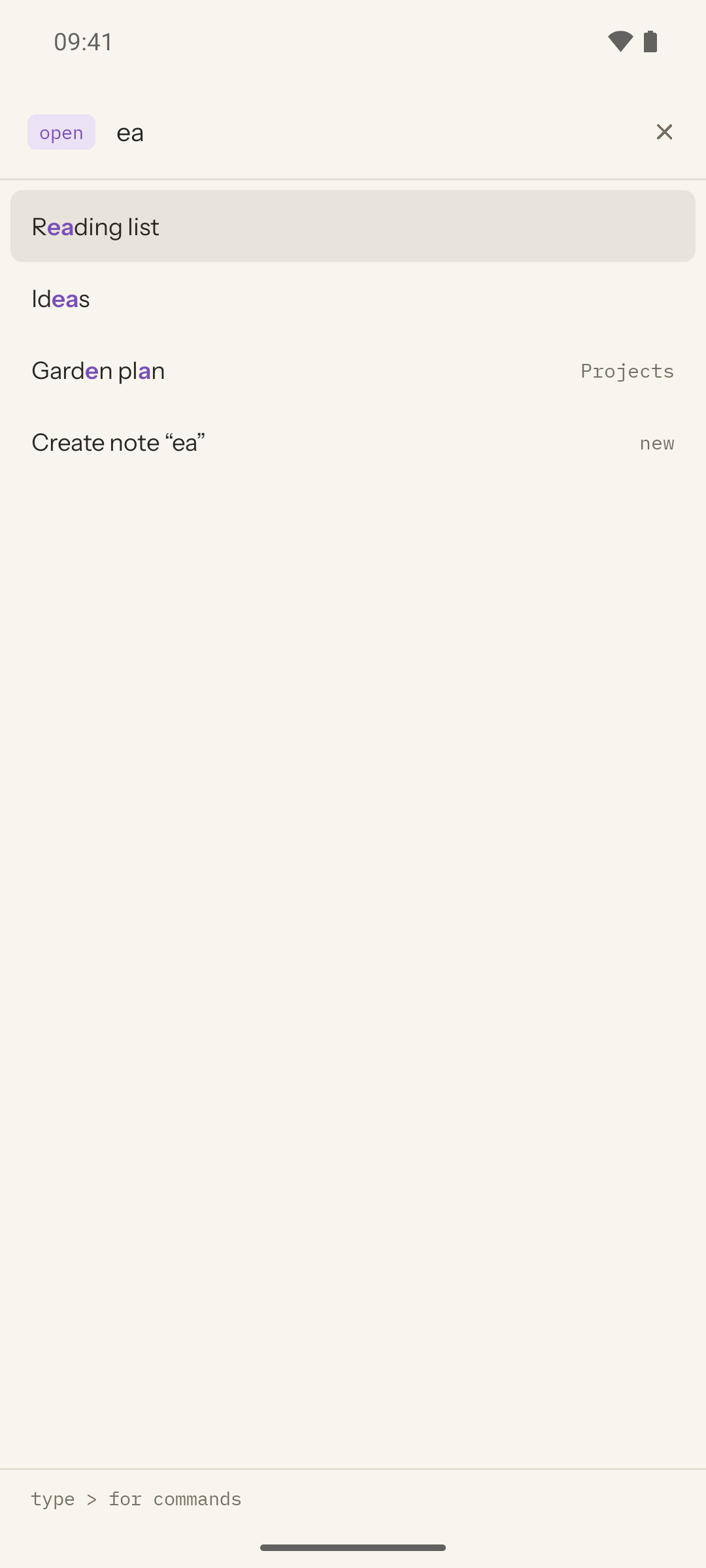
Press Ctrl+O and type a few letters of a note name. Fuzzy matching finds On slow software
when you type sl
.
Press Ctrl+P to open the command palette. It uses the same fuzzy matching and shows the shortcut next to each command that has one.
Notes open in tabs. The file tree on the left shows the folder as it is on disk.
Make folders in the file tree and drag notes into them. To create a note in a folder, use the + on the row of that folder. You can also type Folder/Name in the quick switcher.
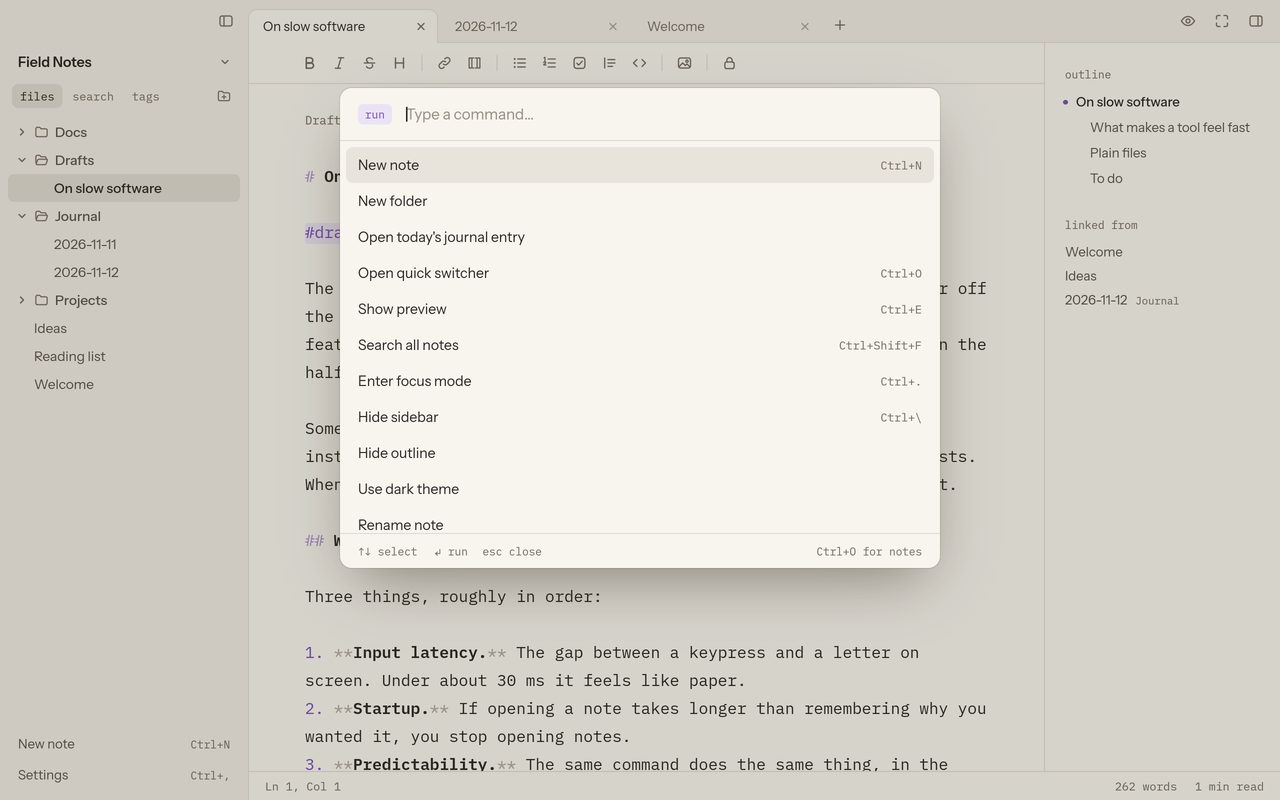
Focus mode
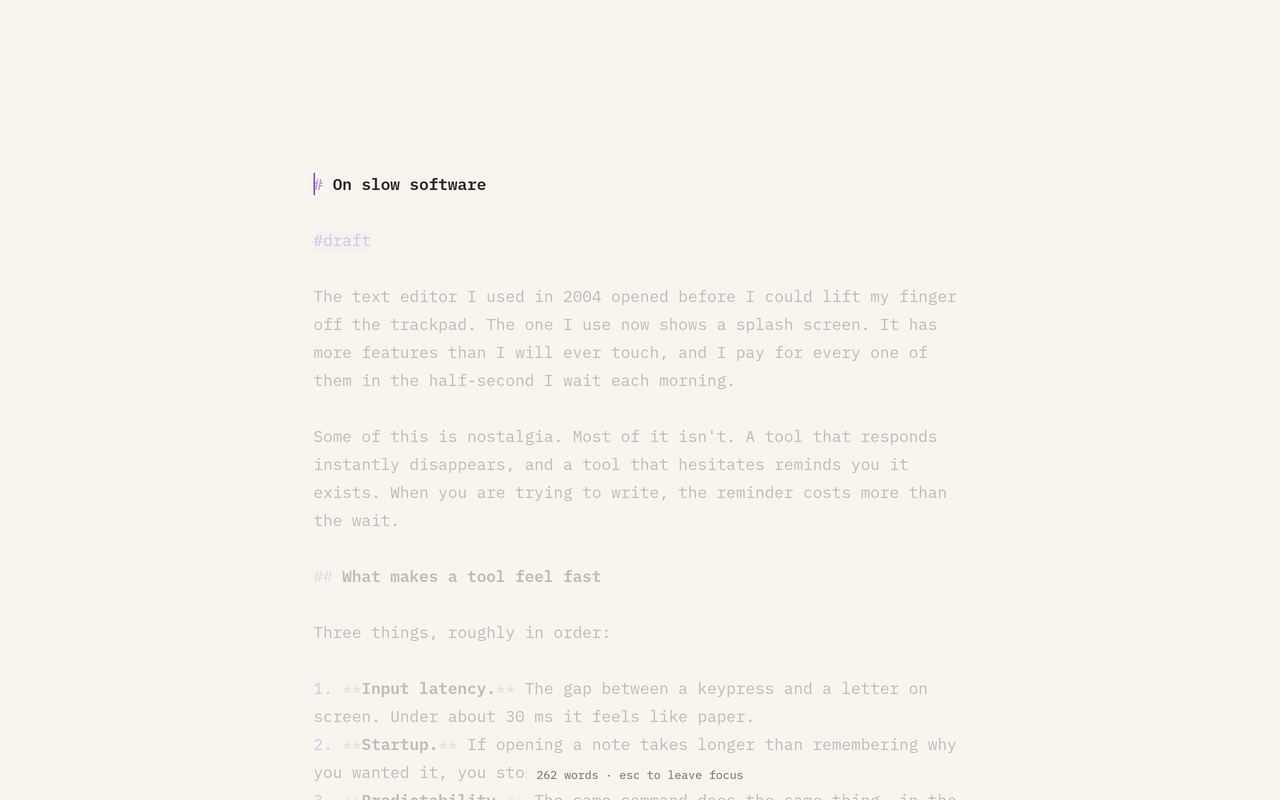
Press Ctrl+. to hide the sidebar, the tabs and every other control. Quire dims all paragraphs except the one you write in.
Typewriter scrolling keeps the line you type near the middle of the screen. Press Ctrl+. again to leave focus mode.
Themes and fonts
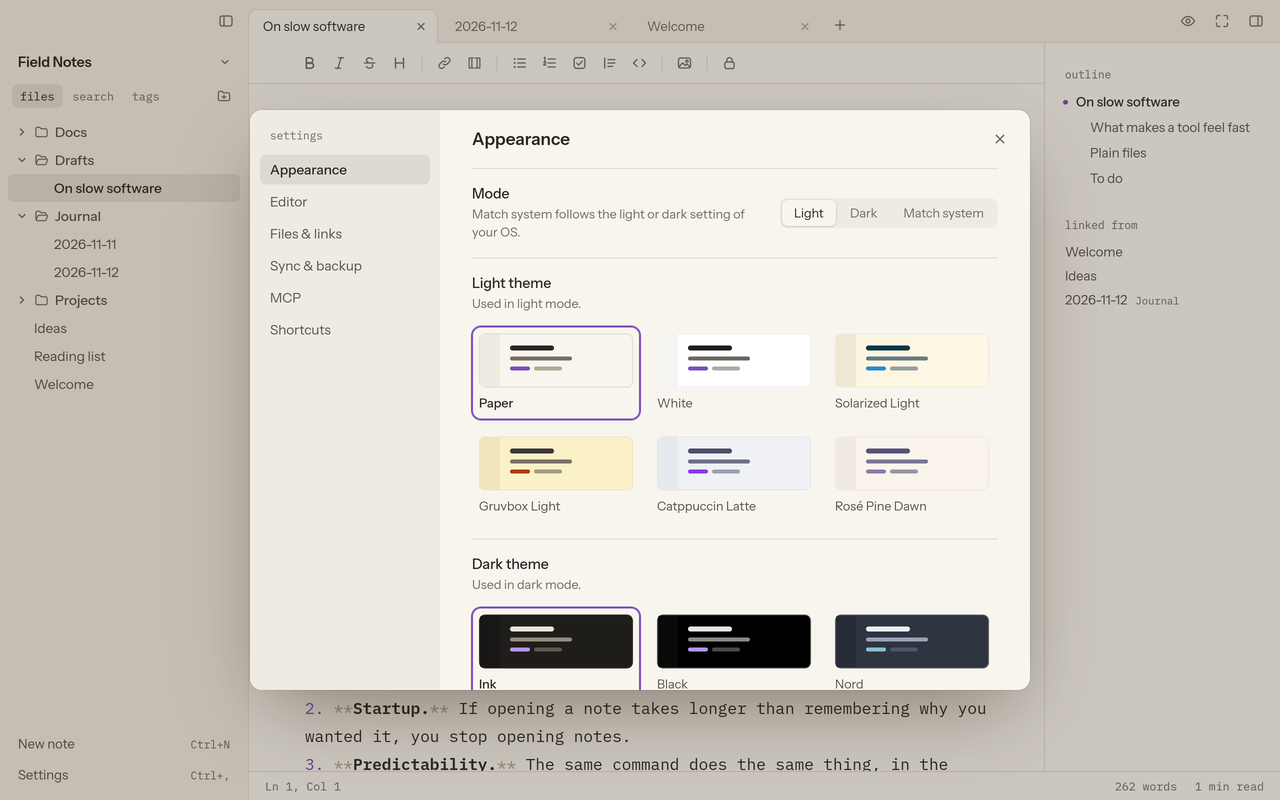
Pick a theme for light mode and a theme for dark mode. There are 14, such as White, Black, Nord, Gruvbox, Catppuccin, Tokyo Night, Rosé Pine and Solarized. Pick an accent colour too, or type any hex value. On Omarchy, your Omarchy theme is also a choice.
To see the default Paper and Ink themes, use the theme switch at the top of this page. The editor screenshots change with it.
Choose one of three monospaced fonts for the editor. Set the font size, and keep lines at a readable width or let them fill the window.
- IBM Plex Mono Field notes
- Courier Prime Field notes
- Spline Sans Mono Field notes
Works with your AI tools
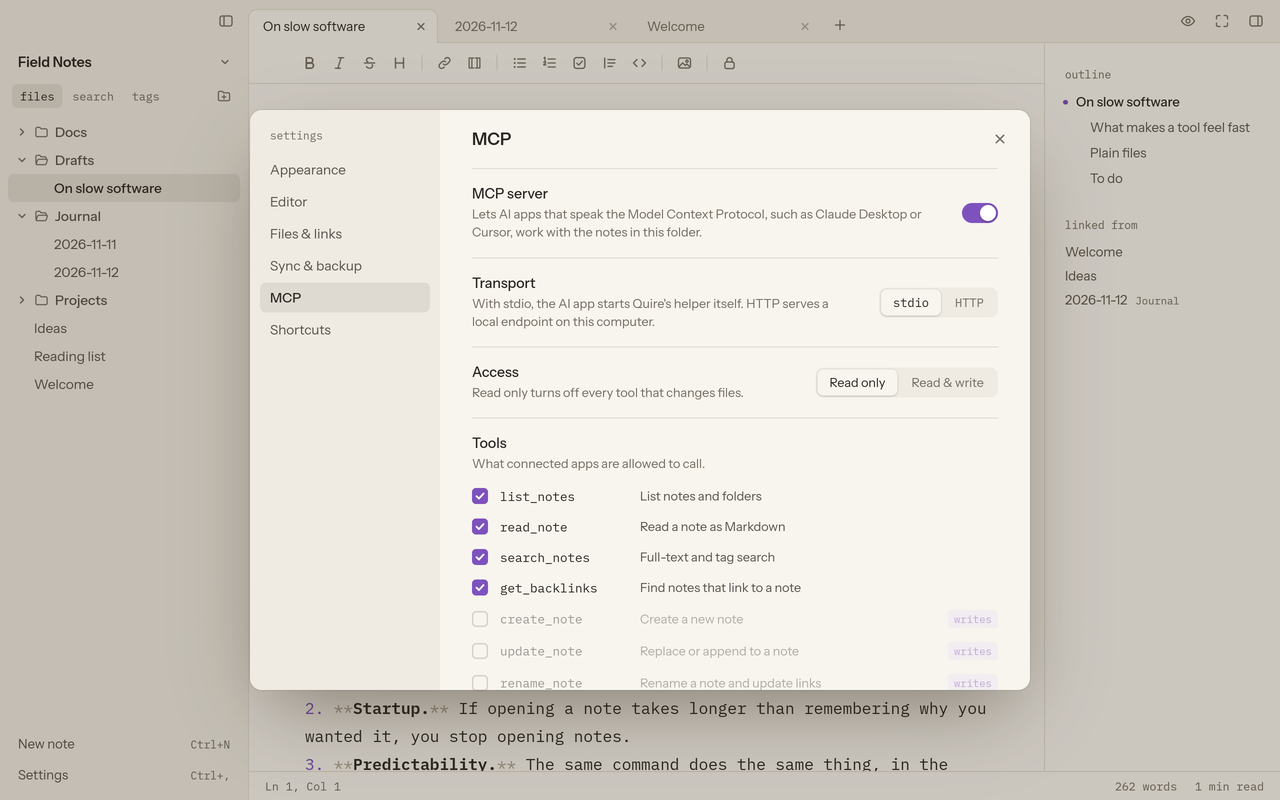
Quire includes an MCP server. MCP is the Model Context Protocol. With it, AI apps such as Claude Desktop or Cursor can list, read and search the notes in a folder.
Access is read only by default. If you allow writes, an AI app can also create, change, rename and delete notes. A deleted note goes to the .trash folder inside your notes folder.
Each tool has its own switch. Hidden folders do not show up in listings or search results.
The AI app starts quire mcp itself. Put this in its MCP settings:
{
  "mcpServers": {
    "quire": {
      "command": "quire",
      "args": [
        "mcp",
        "--folder",
        "/path/to/notes"
      ]
    }
  }
}
While Quire is open, it serves a local endpoint on 127.0.0.1. Copy the token from the MCP settings.
{
  "mcpServers": {
    "quire": {
      "url": "http://127.0.0.1:3917/mcp",
      "headers": {
        "Authorization": "Bearer <token>"
      }
    }
  }
}
read list_notes read_note search_notes get_backlinks
write create_note update_note rename_note delete_note
Sync to storage you control
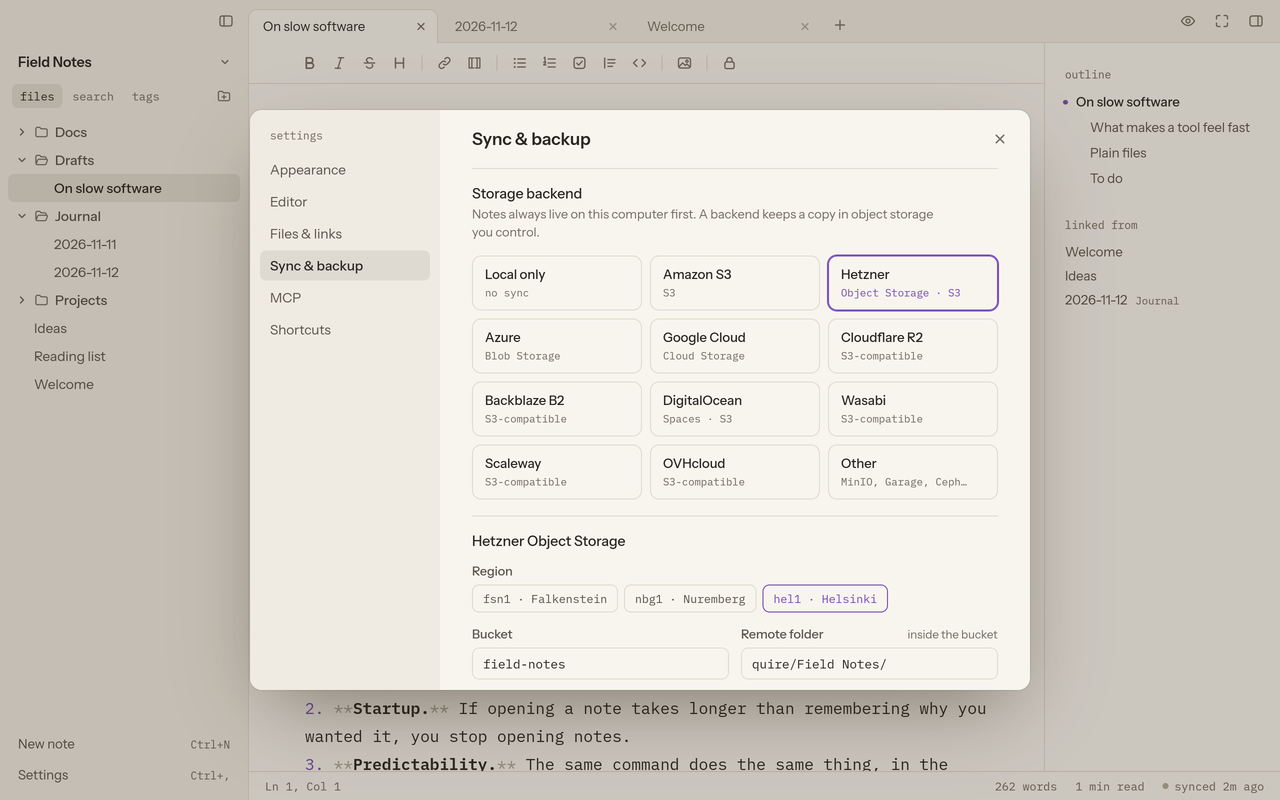
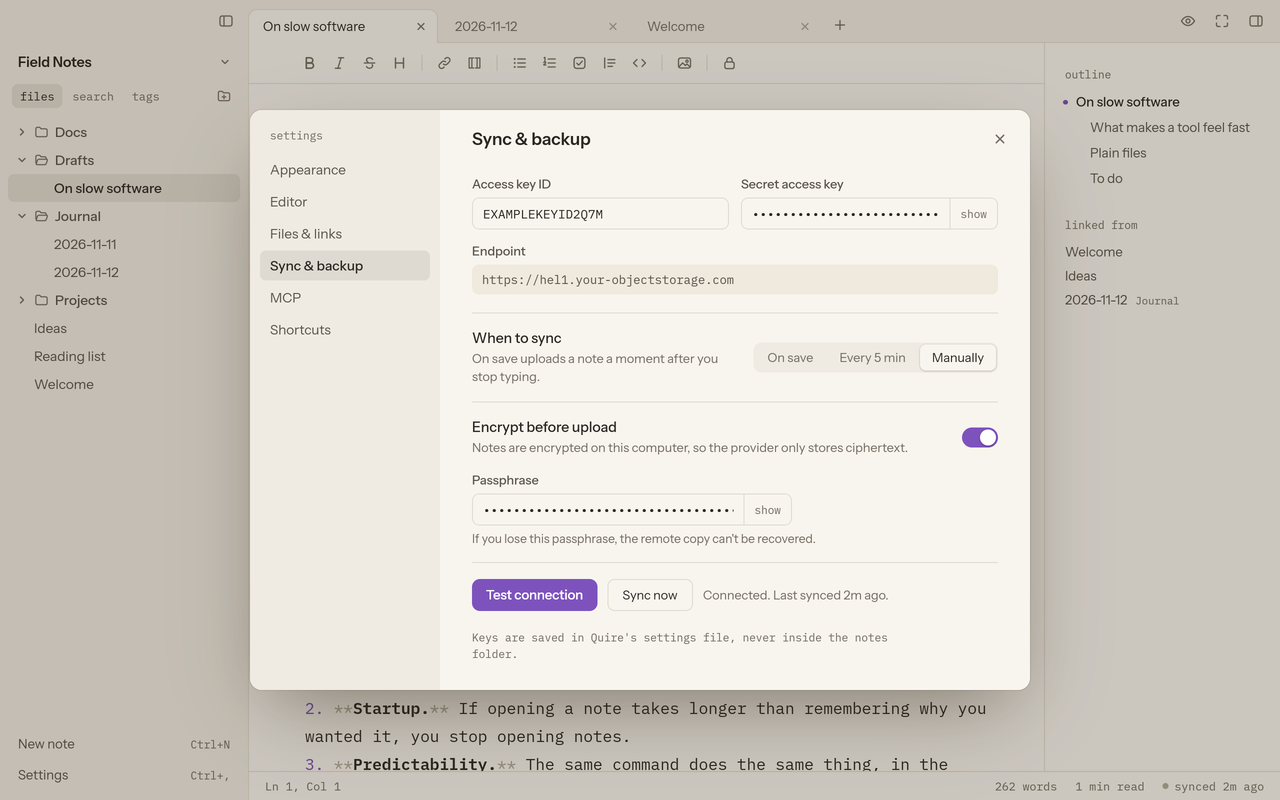
Your notes stay on your device first. Quire can keep a copy in object storage that you control.
Turn on Encrypt before upload, and Quire encrypts each note with AES-256-GCM before upload. The key comes from a passphrase. The storage provider sees no note names and no note text.
Sync works the same in the desktop app and the Android app, so a note you write on your laptop opens on your phone.
- storage
-
- Amazon S3
- Hetzner
- Azure Blob Storage
- Google Cloud Storage
- Cloudflare R2
- Backblaze B2
- DigitalOcean Spaces
- Wasabi
- Scaleway
- OVHcloud
Any other S3-compatible server also works, such as MinIO, Garage or Ceph.
- when
On save, every 5 minutes, or manually.
- conflicts
If two devices change the same note, Quire keeps both versions. The second version is a copy named
<name> (conflict <device>).md.- format
The format is open and documented in SYNC.md. The desktop app and the Android app use the same format.
Keyboard shortcuts
The desktop app uses these shortcuts. Press Ctrl+P to find a command when you forget its keys.
| Action | Keys |
|---|---|
| Quick switcher | Ctrl+O |
| Command palette | Ctrl+P |
| New note | Ctrl+N |
| Source or preview | Ctrl+E |
| Search all notes | Ctrl+Shift+F |
| Focus mode | Ctrl+. |
| Show or hide the sidebar | Ctrl+\ |
| Settings | Ctrl+, |
| Bold | Ctrl+B |
| Italic | Ctrl+I |
| Follow a [[link]] | Ctrl-click |
On your phone
The Android app is a phone version of the same editor, from the same design.
Download
Desktop
A native desktop app for Linux, macOS on Apple silicon and Windows. It draws its interface on the GPU and is written in Rust with the Rune GUI framework. The macOS and Windows builds are not tested on those systems yet.
Download for desktopAndroid
A phone version of the same app, as an APK file. It needs Android 8.0 or newer.
Download the APKBoth links go to the latest release on GitHub. There is no iOS app yet.
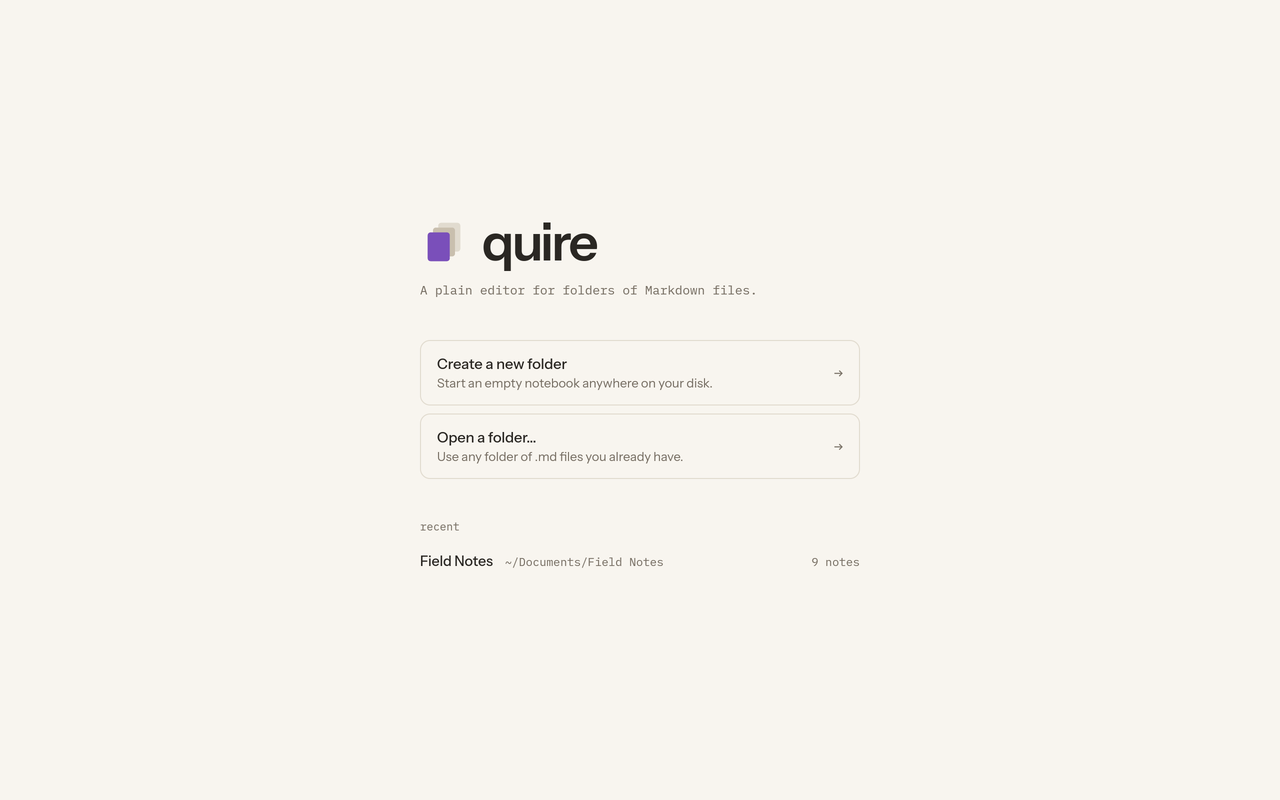
- Start Quire.
- Create a new folder, or open a folder of
.mdfiles that you already have. - Press Ctrl+N to write your first note.