flux Install

Answer your Omarchy computer from your phone.

An agent waits for input. sudo asks for a password. A file arrives. Flux shows it on your phone, and you act with 1 tap. It works on your network, and through Tailscale when you are away.

yay -S omarchy-flux

Then get the app for Android, iPhone, or Mac.

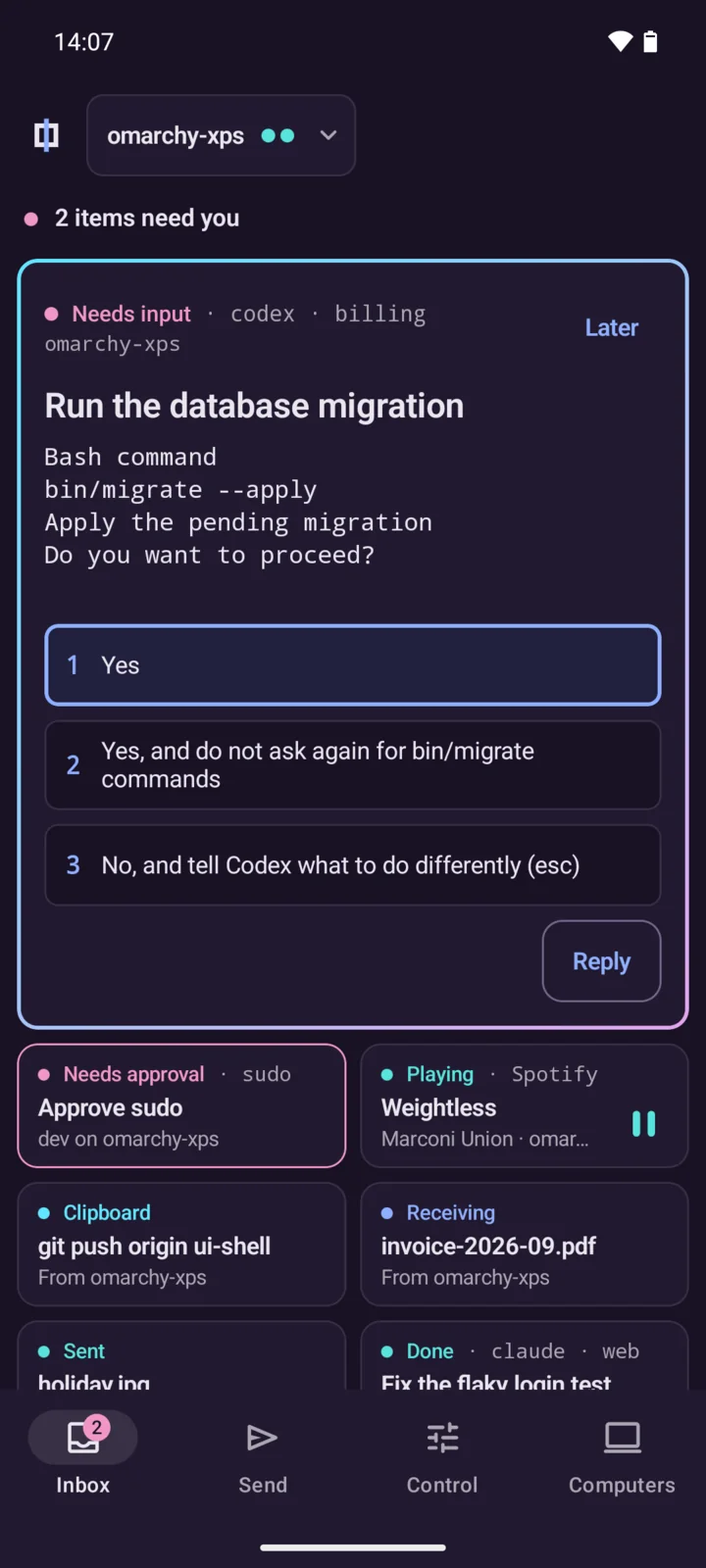
The Flux Inbox on an Android phone at 14:07. The master tile shows the question of a Codex agent: run bin/migrate --apply. It has 3 numbered choices and a Reply button.

One afternoon away from the desk

Your agents keep working on the computer while you are out. Each time below is a moment when Flux brings the computer to you.

Codex waits for an answer.

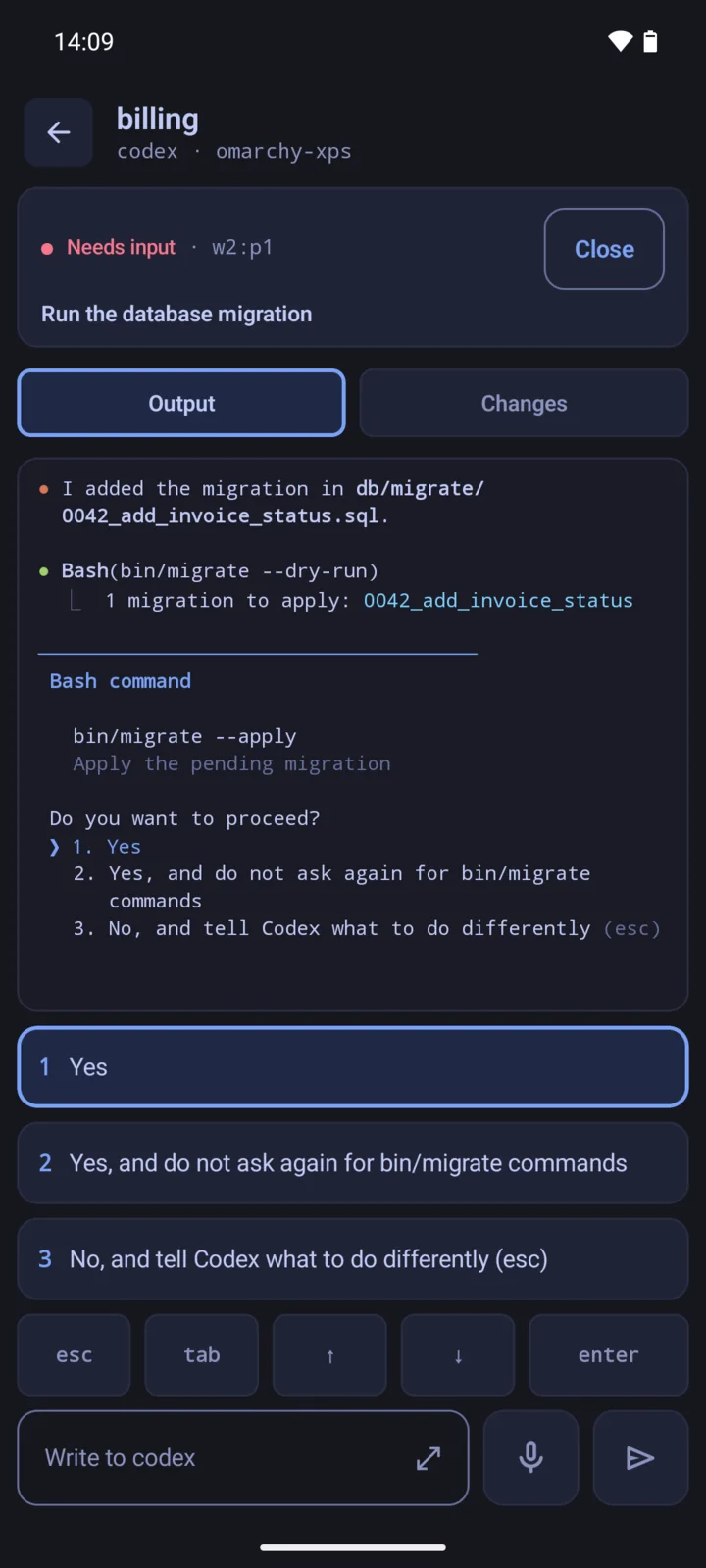
The Inbox shows the agent that waits first. It shows the question, and the command that each choice approves. Tap 1, and Flux types the answer into the herdr pane on the computer.

Agent replies need agent control on the computer, and the phone unlock.
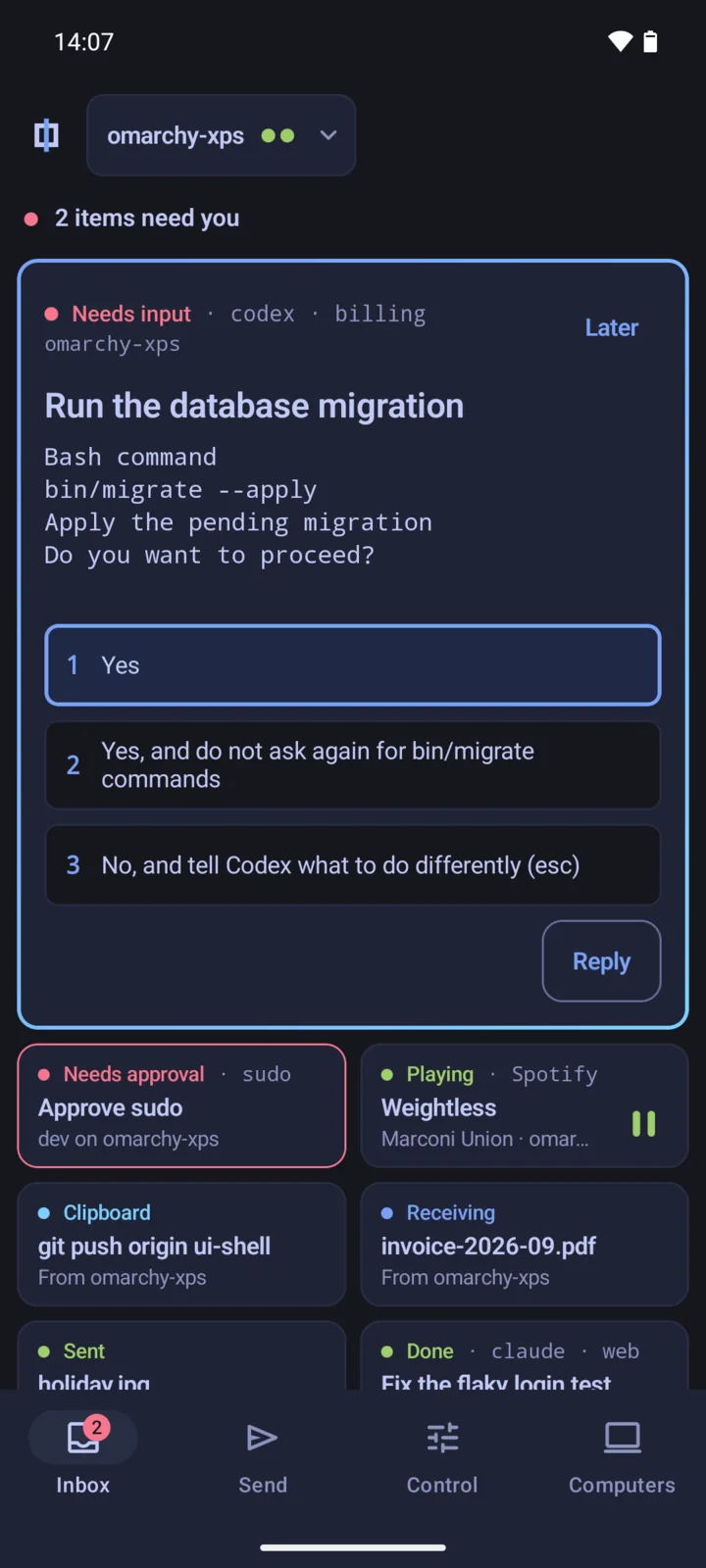
The Inbox with the question of the Codex agent in the master tile.

Read the output before you answer.

Open the agent to see its terminal output in color. Select Changes to review the diff of the working tree. Then answer from the same screen, or type a message to the agent.

The output of the Codex agent on the phone, with Output and Changes tabs, the 3 choices, and a text field.

sudo asks for your fingerprint.

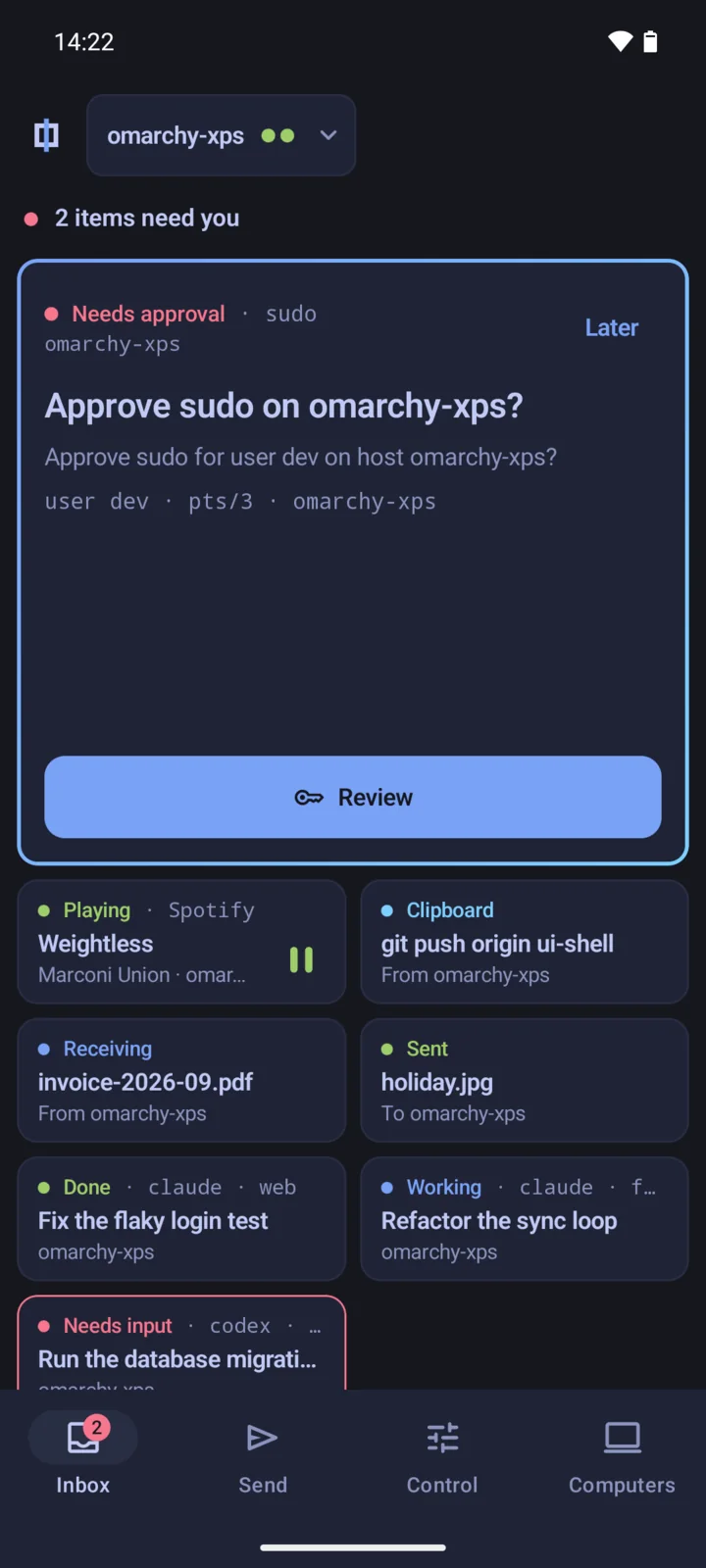
A sudo prompt on the computer shows on the phone. Touch the fingerprint sensor to approve it. The iPhone uses Face ID or Touch ID, and the Mac uses Touch ID.

Only root on the computer can change the key that checks the approval. If the approval fails or times out, sudo asks for the password.

sudo flux-cli approve setup
The Inbox at 14:22 with the request Approve sudo on omarchy-xps in the master tile, and a Review button.

Copy on the phone, paste on the computer.

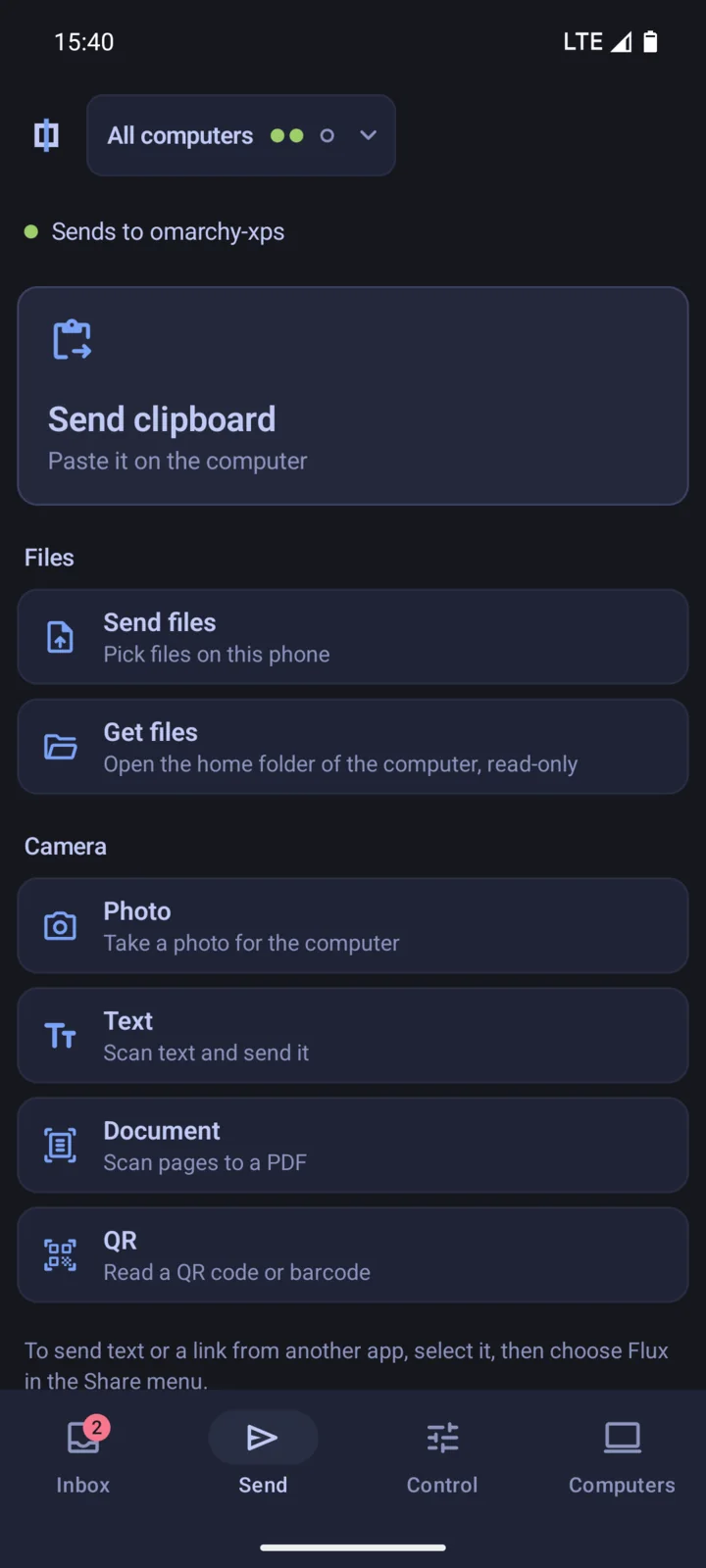
Flux sends clipboard text and images in both directions. Send files, photos, and links from the Share menu of any app. Away from home, Flux connects through Tailscale.

The Send screen on mobile data, with Send clipboard, Send files, Get files, and the camera tools.

Get a file from the computer at home.

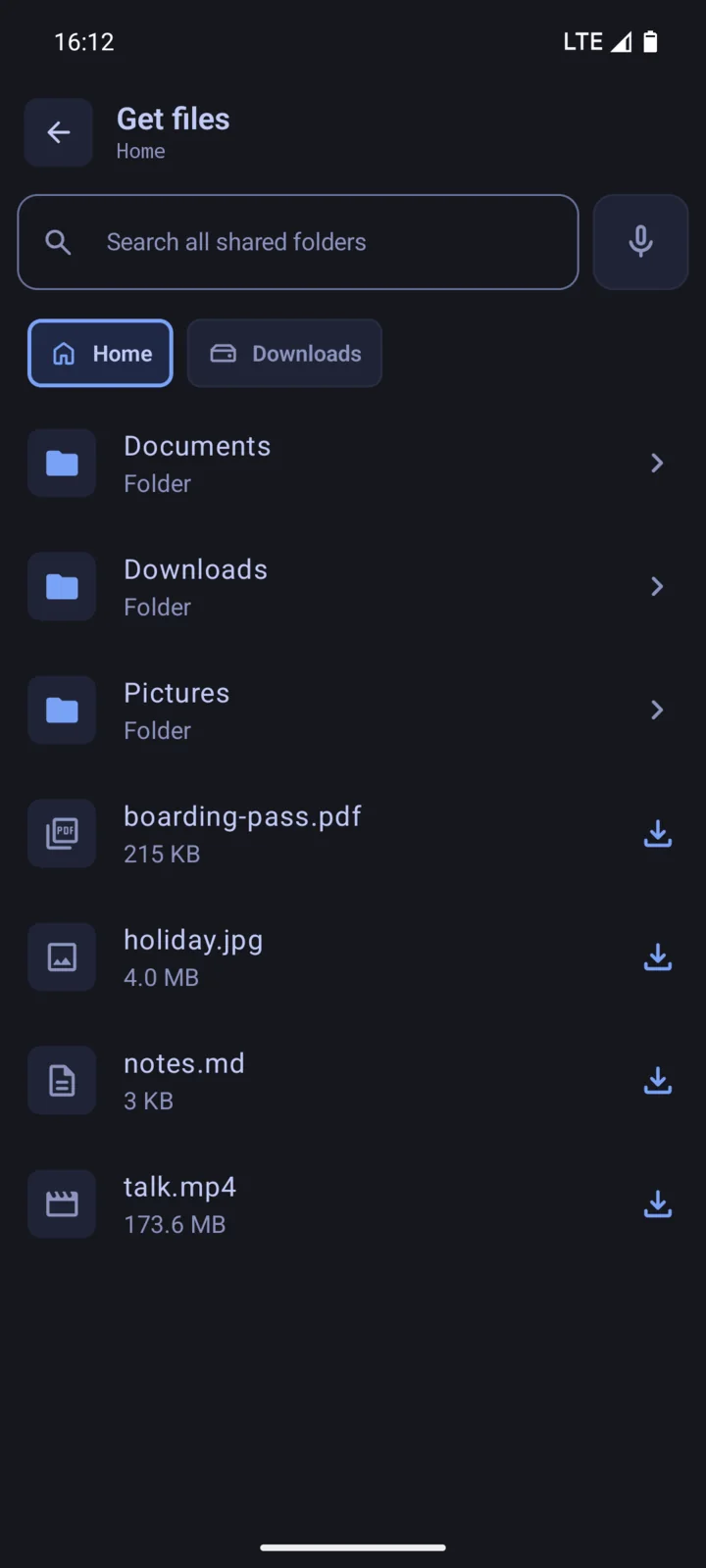
Get files opens the shared folders of the computer, read-only. Search all of them by name, then save the file on the phone.

Get files shows the home folder of the computer, with a search field, folders, and files to download.

Pause the music at home.

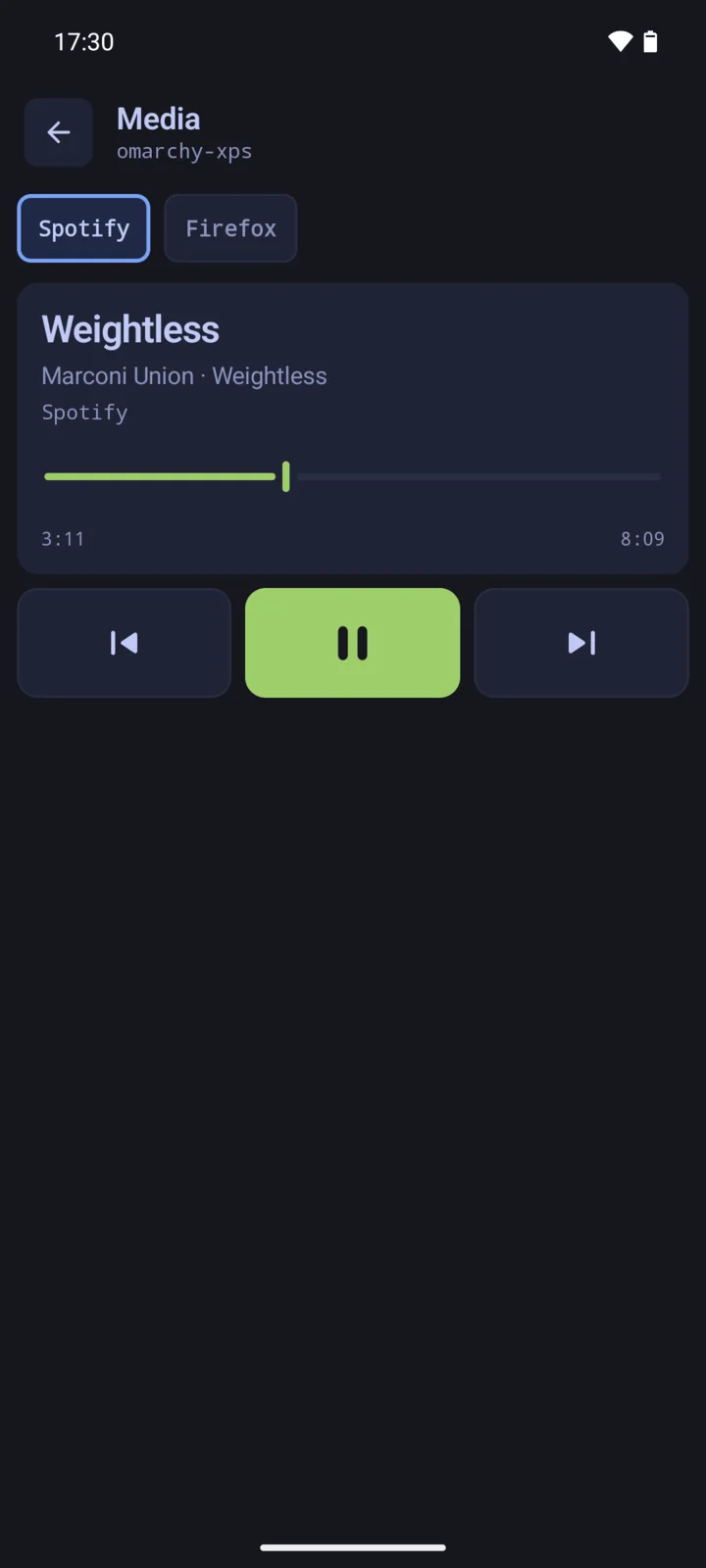
Media shows what plays on the computer. Play, pause, skip, seek, and set the volume. The Inbox also shows what plays now, with play and pause.

The Media screen with the song Weightless, a seek bar, and the previous, pause, and next buttons.

Move a window to another workspace.

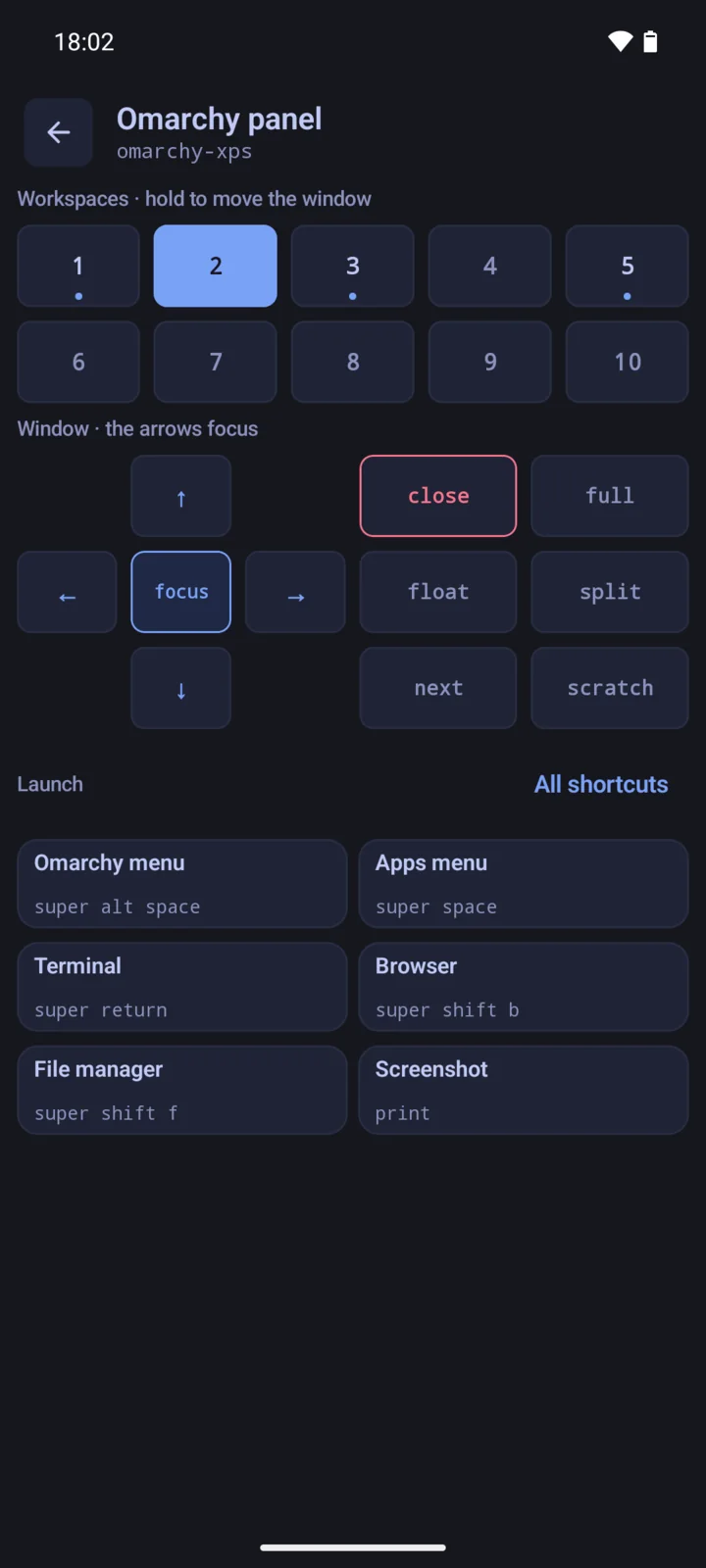
The Omarchy panel shows your workspaces and the focused window. Move, close, or float a window. Open the Omarchy menu, a terminal, or a browser with their key bindings.

The Omarchy panel with workspaces 1 to 10, the window controls, and the launch shortcuts with their key bindings.

At the desk, the phone is a touchpad.

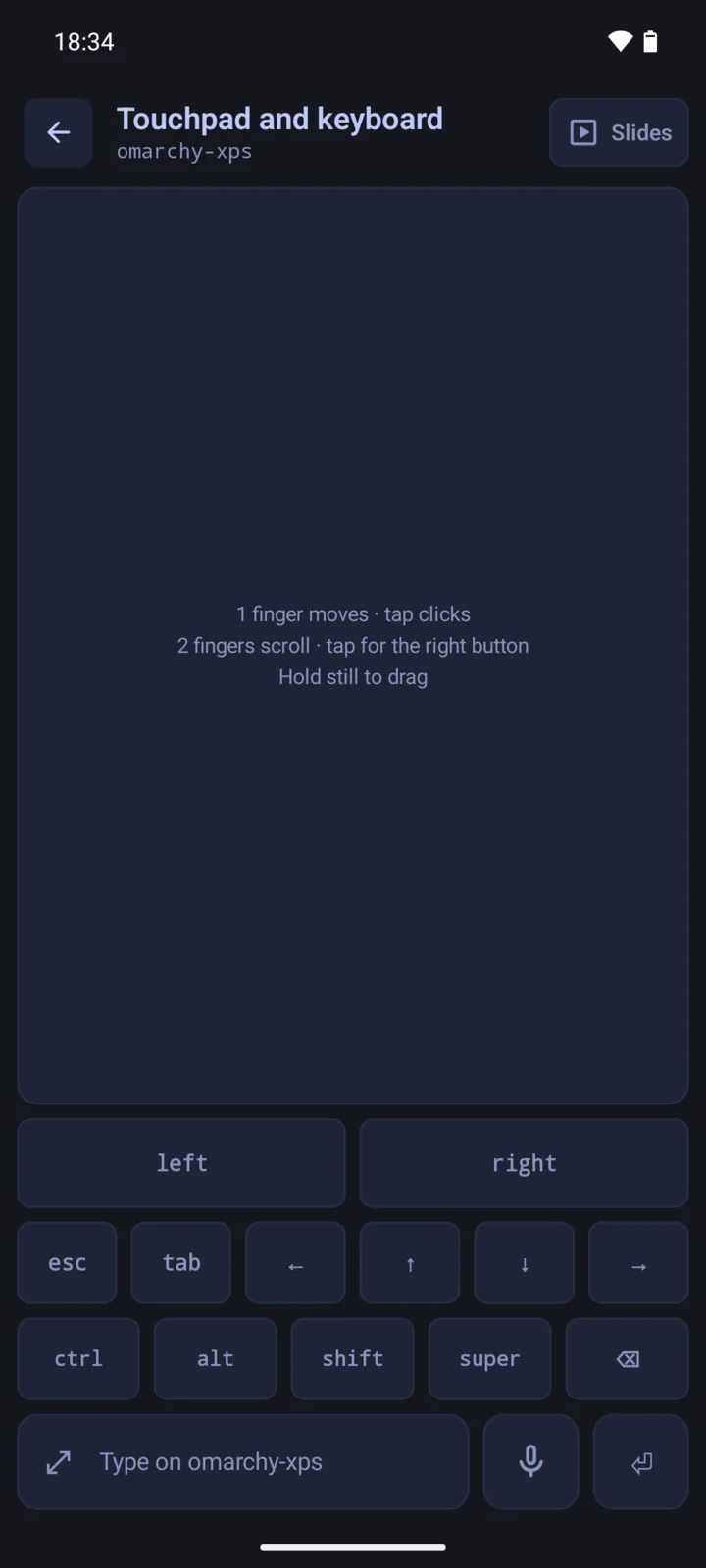
Use the phone as a touchpad and keyboard, a webcam, or a microphone. Show the computer screen on the phone, with its audio. The Flux window on the computer shows what is live, with Stop.

The touchpad and keyboard screen, with a large touch area and keys for esc, tab, arrows, ctrl, alt, shift, and super.

Find the phone.

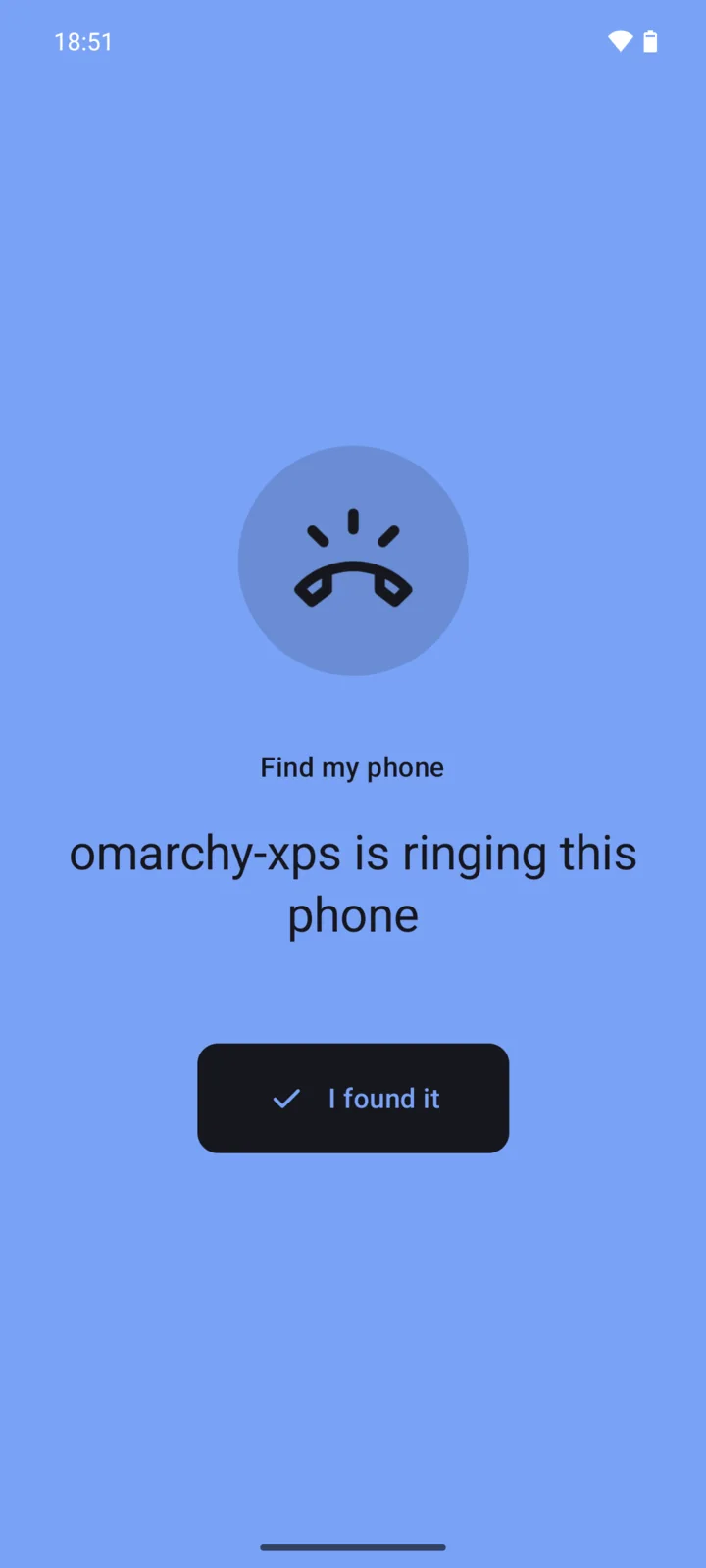
Ring it from the Flux window, or run the command below. Tap I found it to stop the ring.

flux-cli ring
The phone shows the text "omarchy-xps is ringing this phone" and an I found it button.

The screens show Flux for Android 0.12.0 in demo mode, with sample computers and agents.

On the computer, Flux is a window.

The Flux window shows each device with its battery, its notifications, and what is live. flux-cli does the same from a terminal or a script. In omarchy-shell, the Flux mark in the bar opens the window.

flux-cli open
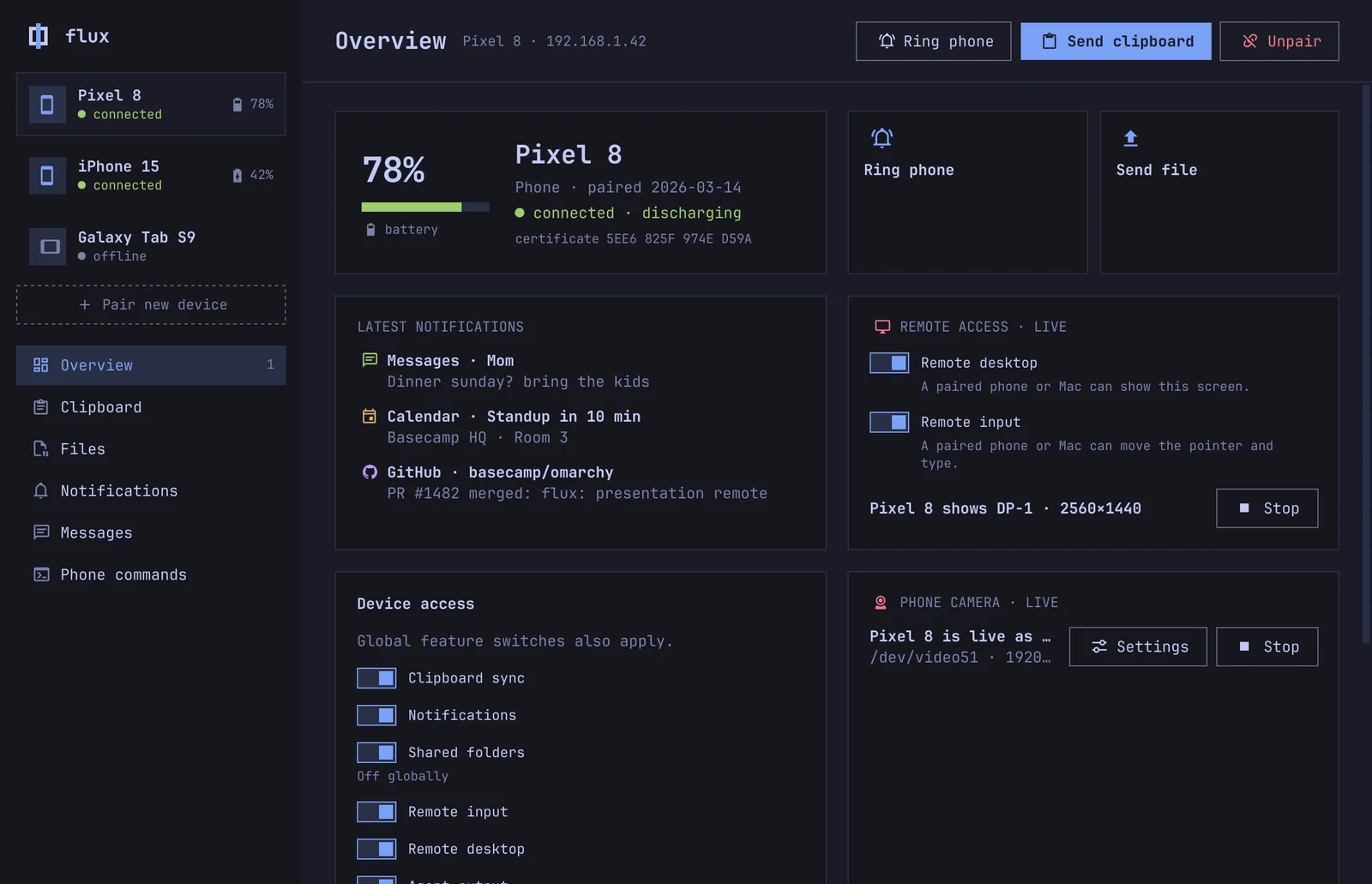
The Flux window on the computer. The Overview of Pixel 8 shows the battery, the latest notifications, the remote desktop and the phone camera as live with Stop buttons, and the device access switches.
The Overview of a Pixel 8. The remote desktop and the phone camera are live.

Flux takes the theme of your Omarchy.

The computer sends its active theme to the phone. Change the theme, and the phone changes with it. A contrast check keeps the text readable in every theme.

Tokyo Night is the default when the computer sends no theme.

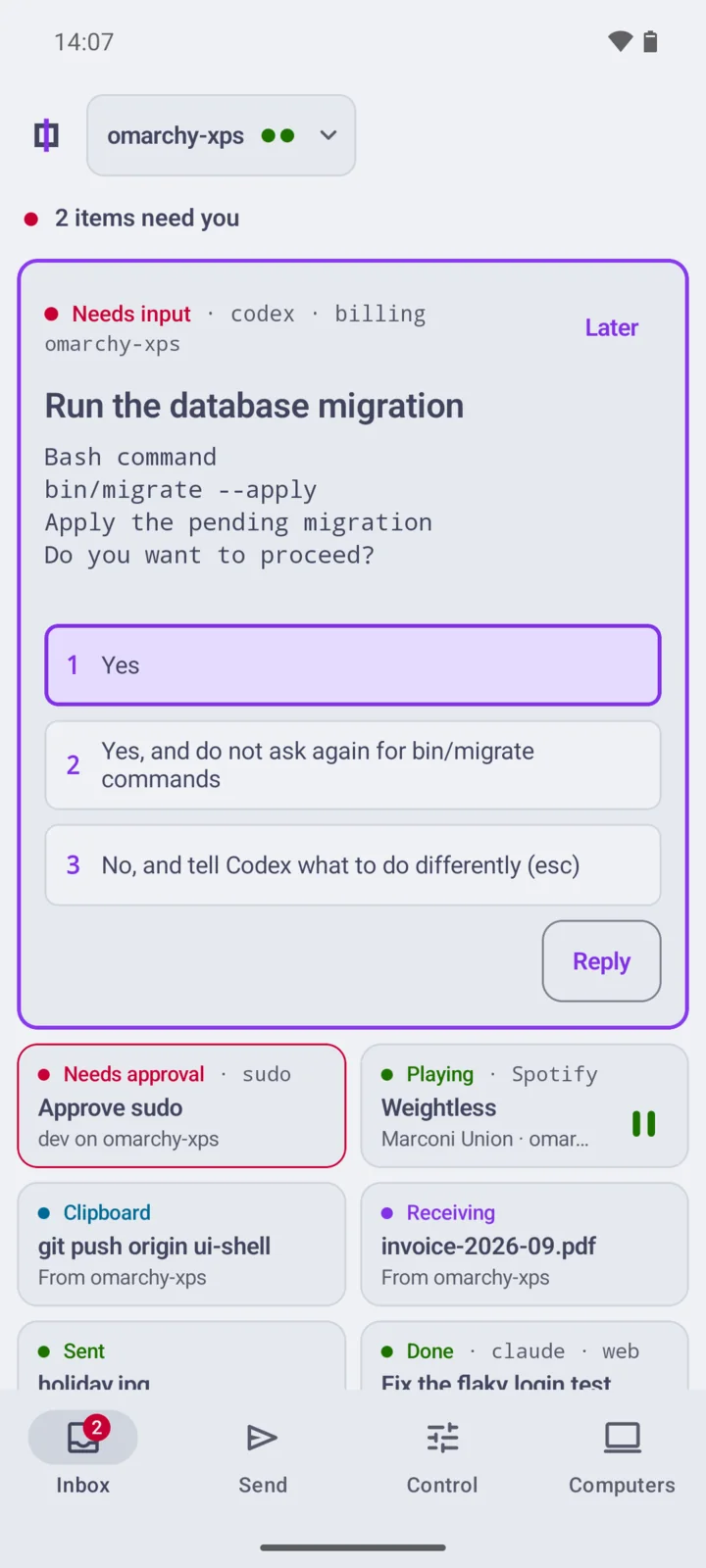
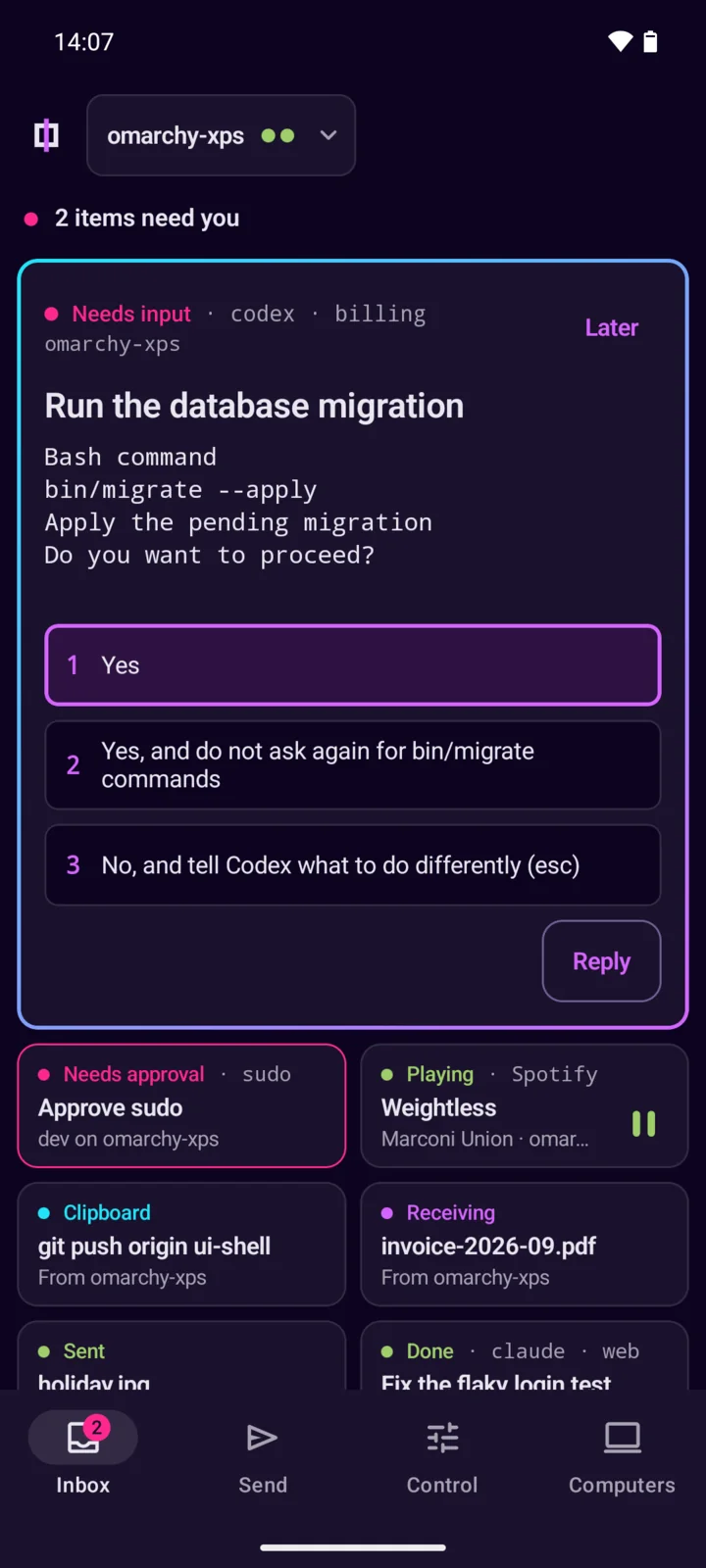
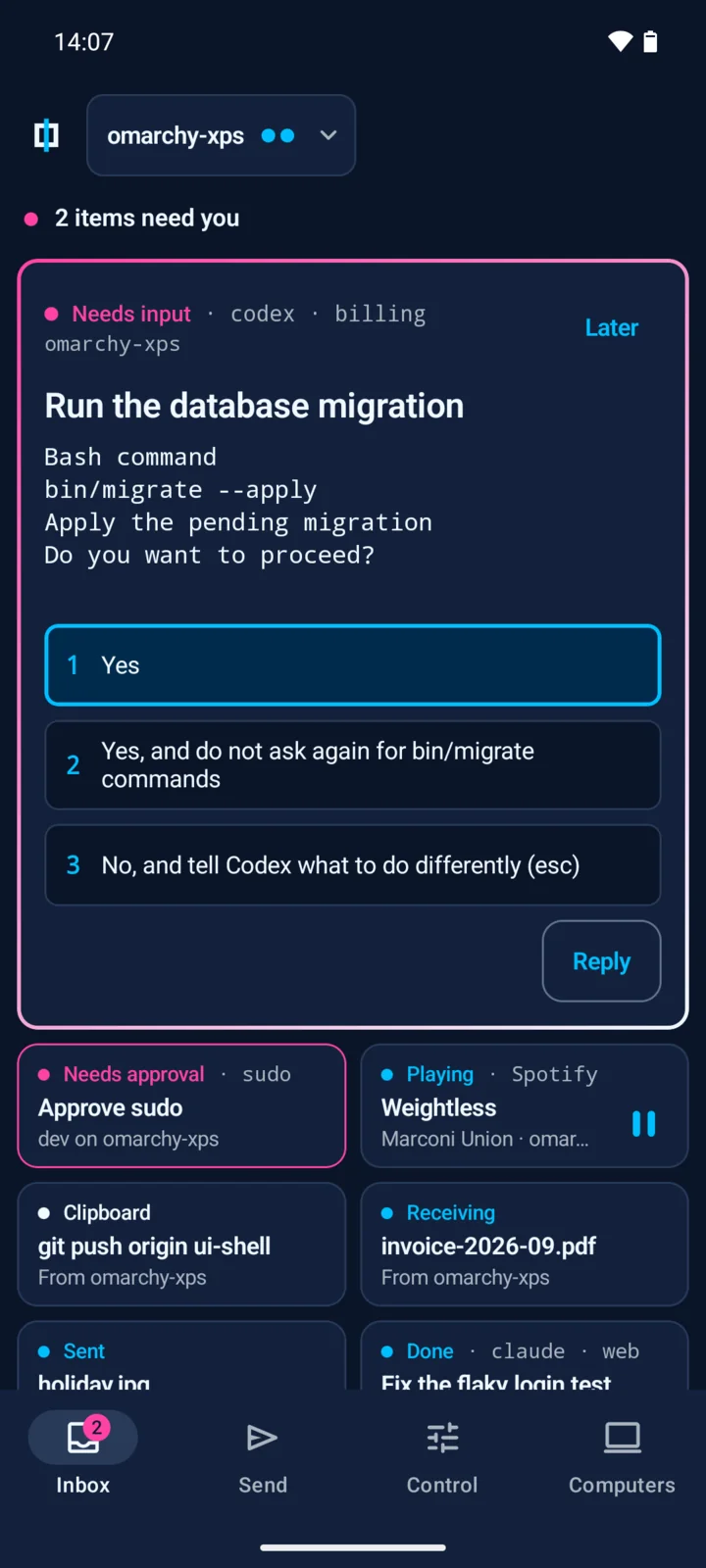
The Flux Inbox in the Tokyo Night theme. The Flux Inbox in the light Catppuccin Latte theme. The Flux Inbox in the Neon theme. The Flux Inbox in the Futurism theme. The Flux Inbox in the Cotton Candy theme.

You pair with a key that you can see.

Compare 16 characters.
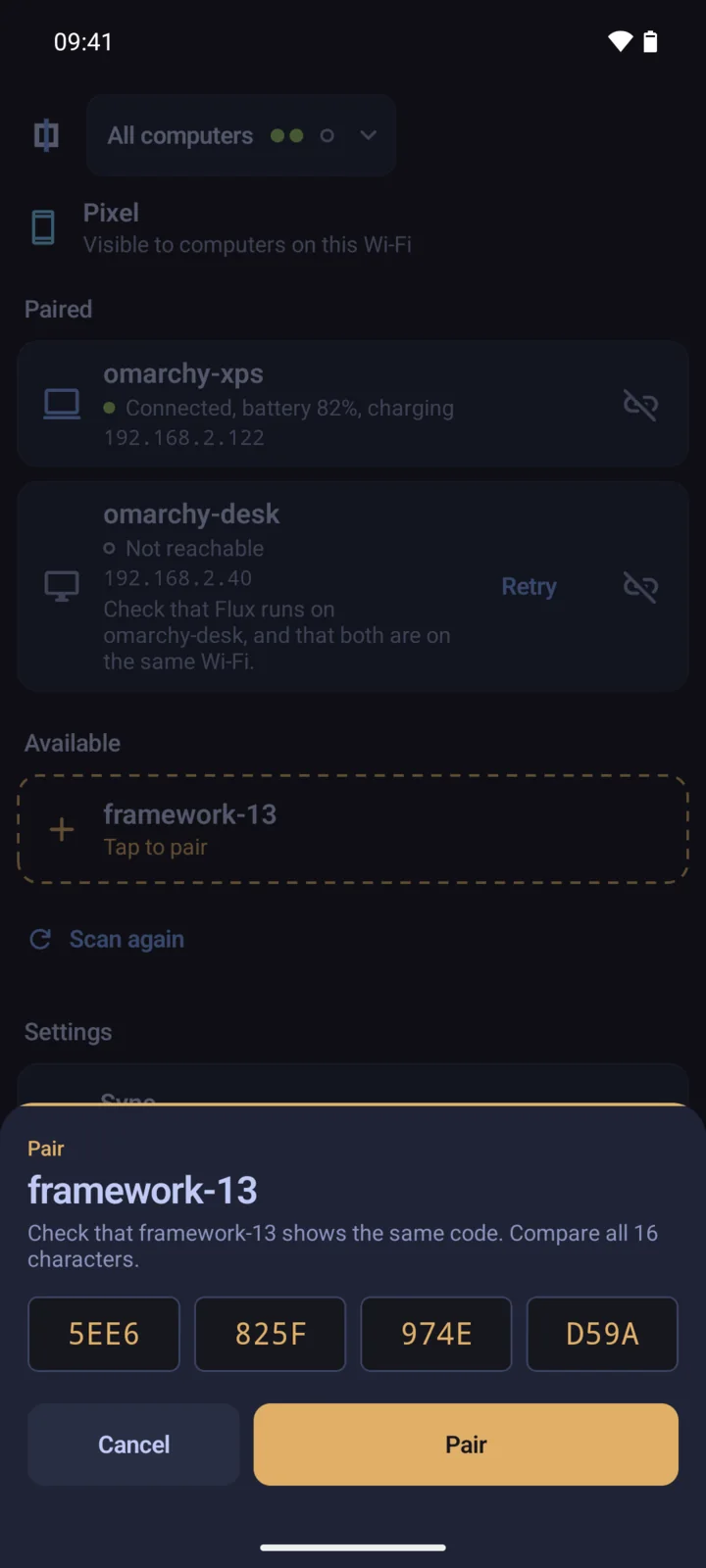
Pairing shows the same key on both screens, for example 5EE6 825F 974E D59A. Accept only when every character matches. A pairing that the computer starts also needs a confirmation on the computer.
Add no firewall rule.
fluxd opens the connections to the phone itself. Flux works with the default Omarchy firewall, which blocks inbound traffic.
Choose what each device can do.
Turn clipboard, notifications, shared folders, remote input, remote desktop, and agent control on or off for each device.
Unlock the phone for control.
Agent replies and remote desktop ask for the phone lock first. The unlock stays valid for 5 minutes.

Read the security guide

The pairing sheet on the phone for framework-13, with the key 5EE6 825F 974E D59A in 4 blocks, and the buttons Cancel and Pair.
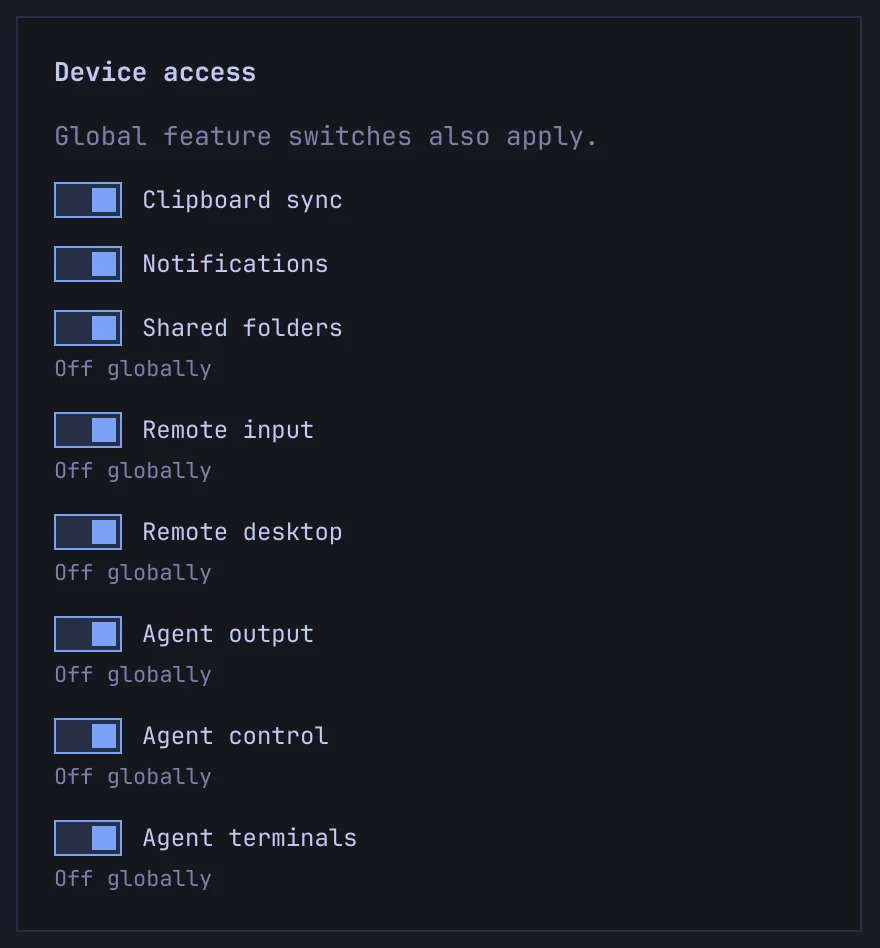
The Device access switches of a Pixel 8 in the Flux window: Clipboard sync, Notifications, Shared folders, Remote input, Remote desktop, Agent output, Agent control, and Agent terminals. All switches except Clipboard sync and Notifications show Off globally.
The Device access switches in the Flux window.

Everything in Flux

Agents
Answer herdr agents
Review the changes of an agent
Start agents and open terminals
Approval
sudo with a fingerprint, Face ID, or Touch ID
The hyprlock lock screen
Clipboard and files
Clipboard text, images, and links
Queued files and folders that resume after a reconnect
Get files from the computer
Saved clipboard snippets
Phone
Phone notifications on the computer, with reply
Text messages
Media pauses during calls
Do Not Disturb on both sides
Camera and sound
The phone as a webcam or a microphone
The phone screen on the computer
Scan text, documents, and QR codes
New screenshots and photos to the computer
Control
Touchpad and keyboard
Remote desktop with audio
Dictation in text fields
Media and desktop commands
Away from home
Connect through Tailscale
Notification rules and quiet hours
Commands that run on device events

Install Flux on both sides.

1 On Omarchy

yay -S omarchy-flux
flux-cli setup
flux-cli open

To build from source, read the install guide. To update later, run flux-cli update.

2 On the phone or the Mac

Android

Android 10 or later

Download the APK

The computer sends later versions to the phone.

iPhone

iOS 17 or later

Build with Xcode

A free Apple ID works. The app then runs for 7 days.

Mac

macOS 14 or later

Download for Mac

The app is not notarized. Before the first start, run xattr -dr com.apple.quarantine Flux.app.

3 Pair them

Open Flux on both sides. Select + Pair new device in the Flux window, and compare the key on both screens.

Version 0.12.0. All releases.

flux

Flux is made for Omarchy.